If you have an iPhone, chances are you occasionally connect it to your PC to transfer Photos and Videos. While Apple has wireless solutions like iCloud and Airdrop, a USB cable is often the faster solution(The wireless solutions are often limited by your network connection). While Apple’s iTunes is decent software, you may have problems with iPhone not showing up on PC. This is a common problem, especially on Windows. It’s relatively easy to connect your iPhone to your Mac, but the experience on Windows is not that good, probably because Apple usually isn’t interested in supporting platforms other than its own. So if you’re facing this problem, here’s how to fix it.
Recommended for you:
How to Print from Google Docs App on Android and iPhone
How to solve the ‘Internet Explorer has stopped working’ Error
What do to if your iPhone not showing up on PC
1. Check your hardware
It is possible that your hardware ports and wire are not functioning. First, insert the cable into a different USB cable in your PC and check if your iPhone is being recognised. If you’re sure that the port is functioning, the cable may be defective. Try a different Lightning-to-USB cable. Also, try disconnecting other USB devices from the PC and just connecting the iPhone.
2. Check the software on your PC and iPhone
- Make sure that your iPhone is turned on, and on the Home screen (sometimes the device is not recognised while using an app).
- Make sure that both your PC and iPhone are updated to the latest software. Install the latest Windows Updates to make sure you have the latest Apple USB drivers. If you have recently installed updates on either your PC or your iPhone, make sure to restart the device for all the changes to take effect.
- Additionally, if you use iTunes, make sure that it’s updated to the latest version.
3. If iPhone not showing when you connect it for the first time
If this is the first time you’re connecting your iPhone to your PC, and it’s not showing up on your PC, then this is normal behaviour. When you connect your iPhone to your PC for the first time, you have to explicitly allow the device to share data with your PC. To do this:
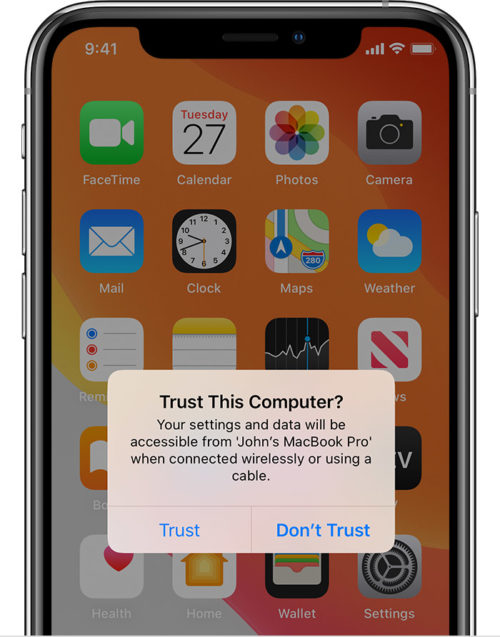
- Disconnect and re-connect your iPhone to your PC. Make sure that it’s unlocked and on the Home screen.
- You should see a prompt on your iPhone asking whether you trust the computer. Tap on Trust to let the iPhone expose its data to the computer.
Now your iPhone should be visible to your PC. If you want to revoke this permission, on your iPhone go to Settings > General > Reset and tap on Reset Location & Privacy. This will revoke the permission for ALL computers.
4. Update the Apple Mobile Device USB Driver
If the above techniques don’t work, your Apple USB driver may be out of date and not be supported by a modern iOS device. To update the driver:
- Connect your iOS device to your PC and make sure it’s on the Home screen.
- Press Win + X or right-click on the Taskbar to open the Taskbar context menu:

- Click on Device Manager. The Device Manager window should open up:
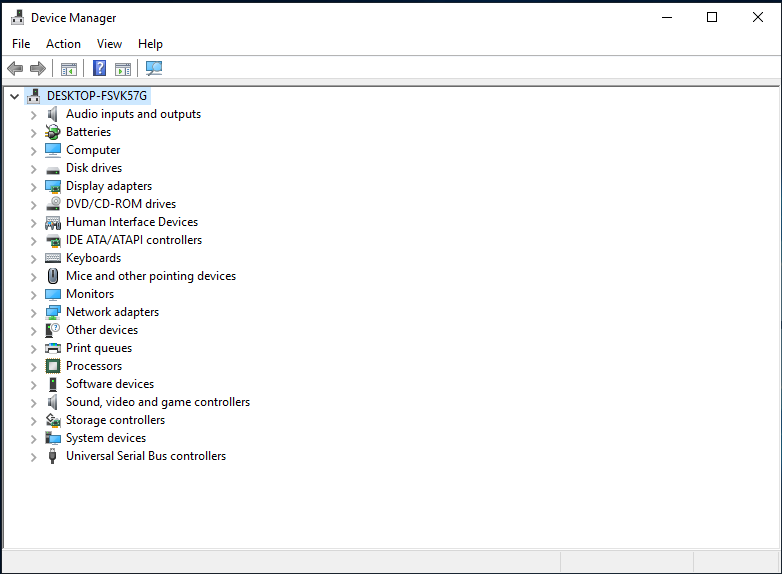
- Under the Portable Devices section, you should find your iPhone (typically labelled “Apple iPhone”). Right-click on it and click Update Driver. Then, click on Search automatically for updated driver software. The wizard should update your Apple Mobile Device USB Driver to the latest available version.
After following these methods, you should be able to connect your iPhone to your PC successfully. If your iPhone is still not being recognised, try connecting it to a different computer. If it isn’t being recognised on multiple PCs, it might be a hardware fault with the iPhone, in which case you’ll have to contact Apple Support to get your device repaired. Read Next, How to Cast to Firestick.