PS5 Console Sharing and Offline Play is the setting that ties your purchases to one PS5. With it on, anyone who uses that console can play your games and media even when the console is offline, and can enjoy some of your PlayStation Plus benefits. Sony allows it on one PS5 at a time.
Everything below comes from Sony’s own support pages, checked on 16 October 2026.
What Console Sharing and Offline Play does
According to Sony’s Console Sharing page, when you enable it, anyone who uses your PS5 can:
- Play your games and media even when the console is offline.
- Play games and media you’ve purchased and downloaded.
- Enjoy some benefits of your PlayStation Plus membership.
It may already be on. Sony says it is automatically allowed on the PS5 you used to sign in to PlayStation for the first time.
How to turn it on or off
- Go to Settings > Users and Accounts > Other > Console Sharing and Offline Play.
- Select Enable or Disable.
If it is already on for another PS5, Sony says to turn it off on that previous console first. Then you can enable it on the new one.
Which PlayStation Plus benefits it shares, and which it doesn’t
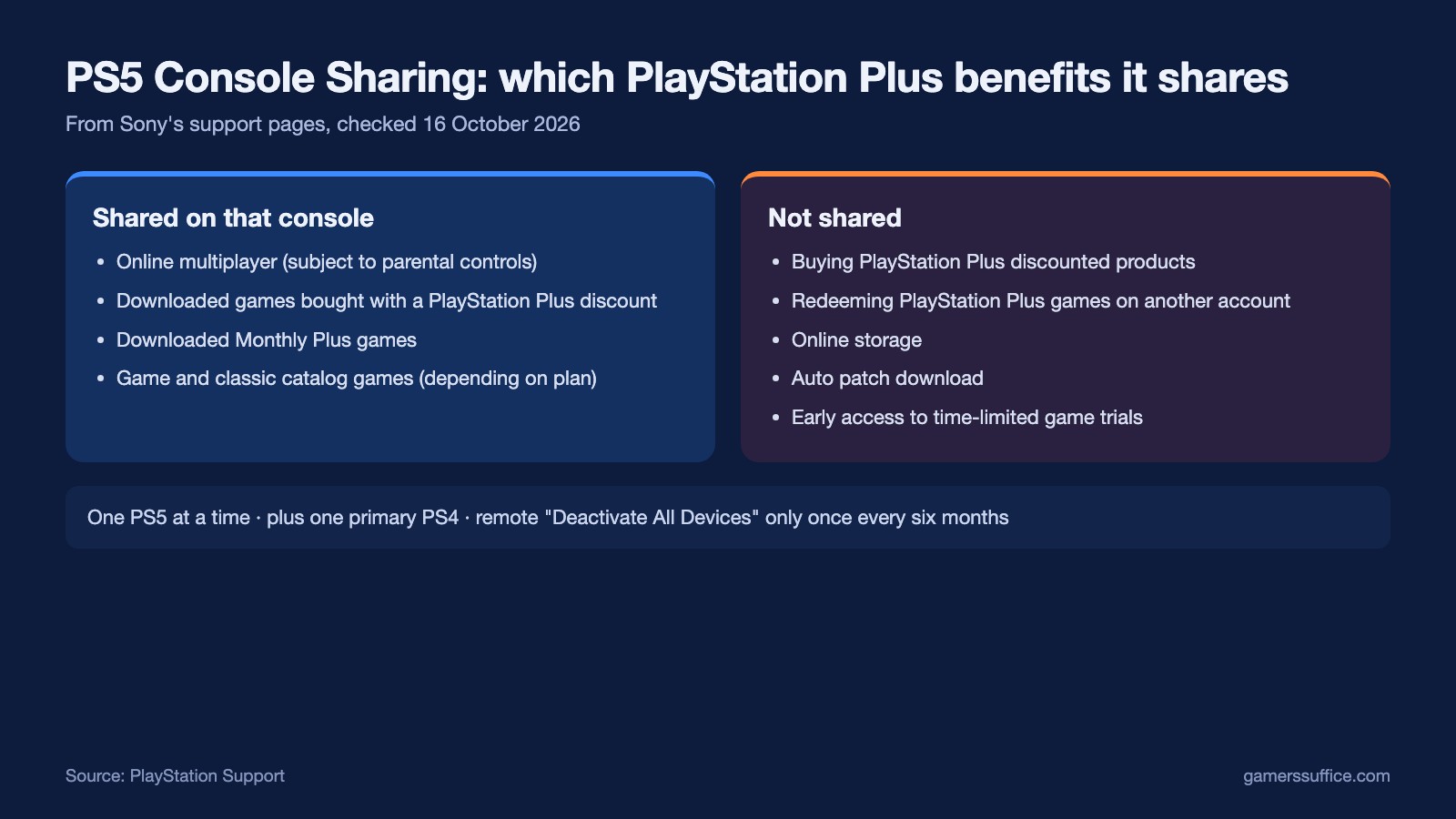
Sony’s PlayStation Plus sharing page splits the benefits into two lists:
| Shared on the console | Not shared |
|---|---|
| Online multiplayer (subject to parental control settings) | Buying PlayStation Plus discounted products from PlayStation Store |
| Downloaded games purchased with a PlayStation Plus discount | Redeeming PlayStation Plus games on another account |
| Downloaded Monthly Plus games | Online storage |
| Game and classic catalog games (depending on membership plan) | Auto patch download |
| Early access to time-limited game trials |
So online multiplayer is shared with other players on that PS5, but online storage is not. If online play is the reason you are looking at this, our explainer on whether you need PlayStation Plus to play online covers which games need it at all.
The limits: one PS5, one PS4
Sony states it plainly: “You can turn on Console Sharing and Offline Play on one PS5 console at a time.” You can share PlayStation Plus benefits on one PS5 and one PS4. The PS4 equivalent is activating a console as your primary PS4, and Sony says you can have both a PS5 and a PS4 activated at the same time.
Sony’s activation limits per account are:
| Console | Activations |
|---|---|
| PS5 (Console Sharing and Offline Play) | 1 |
| PS4 (primary PS4) | 1 |
| PS3 | 2 |
| PS Vita/TV | 3 |
Can you share it with a friend on another console?
Sony’s own FAQ answers this directly: “Can I share PlayStation Plus with a friend on another console? No.” It adds that you can only share your games and PlayStation Plus benefits with accounts on one PS5 with Console Sharing and Offline Play activated, and your primary PS4. The sharing belongs to a console, not to a person.
Moving to a new PS5, or a console you can’t reach
To move the setting to a new PS5, disable it on the old one first (Settings > Users and Accounts > Other, then Console Sharing and Offline Play > Disable). Sony notes that deactivating your console does not delete your data or damage your console.
If you no longer have the old console (sold, broken or lost), there is a catch:
- You sign in to Account Management on the web and select Device Management > PlayStation Consoles > Deactivate All Devices.
- You can’t remotely deactivate individual PlayStation consoles. It is all or nothing.
- Sony says you can only do it once every six months.
- To sign out from consoles you can no longer reach, Sony says to change your password.
Sony’s instruction for a new PS5 is to manually deactivate the previous one first, which does not depend on the six-month remote option. Moving your games and saves is a separate step, covered in our guide to Sony’s PS5 Data Transfer.
If it won’t turn on, or a shared game won’t open
Can’t enable it? Sony’s steps: if it is allowed on another PS5, turn it off there first. Then check the PlayStation status page and wait if there are alerts. Make sure the console has the latest system software (our guide to the latest PS5 system software update covers what is current). Then turn off your router, wait at least 5 minutes, restart it and try again, and finally restart the console.
Can’t access a shared game or benefit?
- The user who enabled Console Sharing and Offline Play must be the one who purchased the content.
- If the game is part of PlayStation Plus, the subscription must be active.
- If someone else who shares the console owns the game, they need to have turned the setting on themselves.
A padlock icon on a game can mean a license or network issue. If the padlock covers the whole game image, Sony says your Family Manager can change it. Otherwise, Sony’s game-launch guide says to make sure you’re signed in to the account that bought the game, check your transaction history, and once you’ve verified you have access, check the PlayStation status page and your system software.
More PlayStation guides are in our Console section.
Sources
- PlayStation Support: How to turn on PS5 Console Sharing and Offline Play
- PlayStation Support: Share PlayStation Plus benefits on PlayStation consoles
- PlayStation Support: How to deactivate a PlayStation console
- PlayStation Support: How to activate a primary PS4 console
- PlayStation Support: How to troubleshoot issues when starting a game