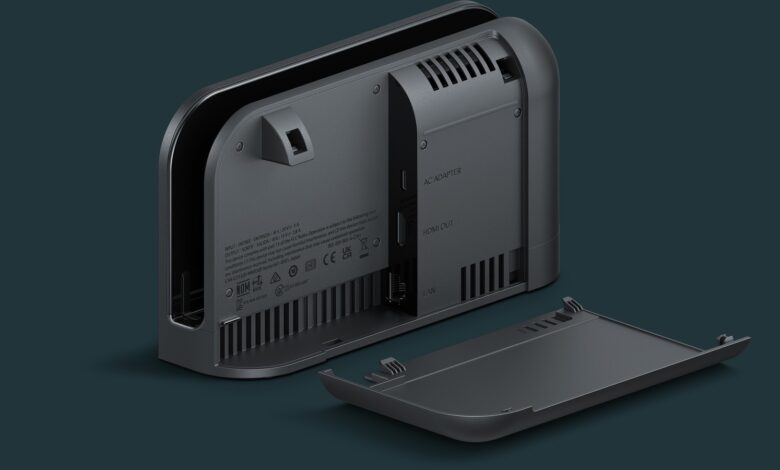
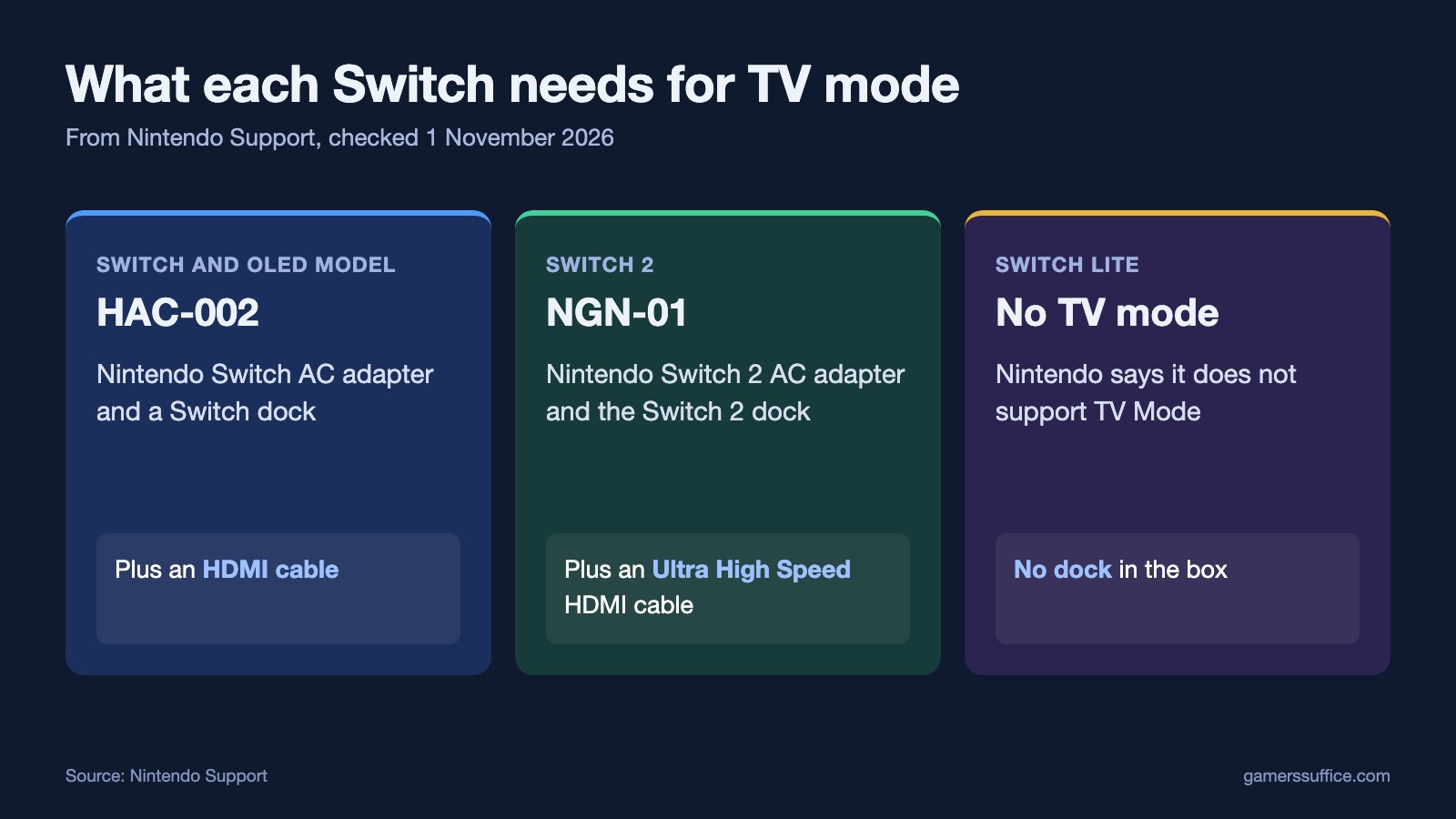
To play a Nintendo Switch on a TV, connect its dock to power and to the TV with an HDMI cable, take the Joy-Con off, and slide the console into the dock. The steps are the same on Switch 2, but it needs its own adapter, dock and a faster HDMI cable. Nintendo says “The AC adapter, dock, and HDMI cable included with Nintendo Switch cannot be used to play Nintendo Switch 2 in TV mode.”
The Switch Lite can’t do this at all: “Nintendo Switch Lite does not support TV Mode.”
How to connect a Switch or OLED Model
- Open the back cover of the dock.
- Plug in power. Nintendo’s step reads “Connect the USB Type-C plug from the Nintendo Switch AC adapter (model No. HAC-002) into the top terminal of the dock labeled” AC ADAPTER, with the other end going to a wall outlet.
- Plug in video. “Connect one end of the HDMI cable into the bottom terminal of the dock labeled” HDMI OUT, and the other end into your TV.
- Close the back cover.
- “Remove the left and right Joy-Con controllers from the console.” If they’ve never been attached to this console, Nintendo says “they must first be registered to the console in order to be used as wireless controllers.”
- “Position the console so that the console screen faces in the same direction as the front panel on the dock, then insert the console into the dock.”
- “Turn the TV set on and select the correct HDMI input.”
The handheld screen going dark is normal: “While the console is docked, the console screen will shut off.”
What’s different on Switch 2
The sequence is the same, but the parts aren’t interchangeable. Nintendo’s Switch 2 setup page lists “A Nintendo Switch 2 AC Adapter (model no. NGN-01)” and an Ultra High Speed HDMI cable.
- The old adapter: “Due to differing power output, the Nintendo Switch AC adapter can not be used with the Nintendo Switch 2 dock to support TV mode.” Nintendo adds that it “can be used to charge the console when directly plugged in, but cannot be used with the dock to charge the console and support TV mode.”
- Other adapters: “An AC adapter that supports at least 54W should be used.”
- The old cable: “The HDMI cable included with Nintendo Switch is not Ultra High Speed and cannot be used to play Nintendo Switch 2 in TV mode.”
- Joy-Con 2: if they haven’t been attached before, “they must first be paired in order to be used as wireless controllers.”
Our guide to VRR in TV mode on Switch 2 covers the dock’s firmware update, which that feature needs.
Can you skip the dock?
Search results are full of videos using USB-C to HDMI adapters. Nintendo’s two setup pages both list a dock as required, and on 1 November 2026 neither described any other way to reach a TV. We haven’t tested those adapters, so we can’t tell you whether one will work with your console.
Nintendo’s own advice on freezing in TV mode points the same way: “If a different accessory is being used, replacing it with the licensed dock may resolve the problem.”
If the TV shows nothing
- Rule out the console first. Nintendo’s opening step is “Check that the console is functioning properly in handheld mode”.
- Simplify the chain. Nintendo says “Avoid using a power strip when troubleshooting.” If you have a sound bar, a home theater system or a video adapter in the line, it says “remove them temporarily.”
- Take any case off: “Remove any protective cases before docking the console.”
- “Verify you are using the correct input on the TV.”
- “Lower or adjust the TV Resolution settings on the console”.
- “Try a different HDMI port on the TV.” On Switch 2, also “Try a different Ultra High Speed HDMI cable.”
- Try a second dock if you can. Nintendo says “If the console works using a different dock, only the original dock will need to be serviced.”
Once you’re set up, see how to play 2 player on Nintendo Switch. If the controllers won’t connect, try Nintendo’s pairing steps. More guides are in our Console section.
Sources
- Nintendo Support: How to connect Nintendo Switch to a TV
- Nintendo Support: How to connect a Nintendo Switch 2 console to a TV
- Nintendo Support: Blank screen or no image on the TV on Nintendo Switch 2
- Nintendo Support: Blank screen or no image on the TV (Nintendo Switch)
- Nintendo Support: Nintendo Switch console freezes or will not power off


