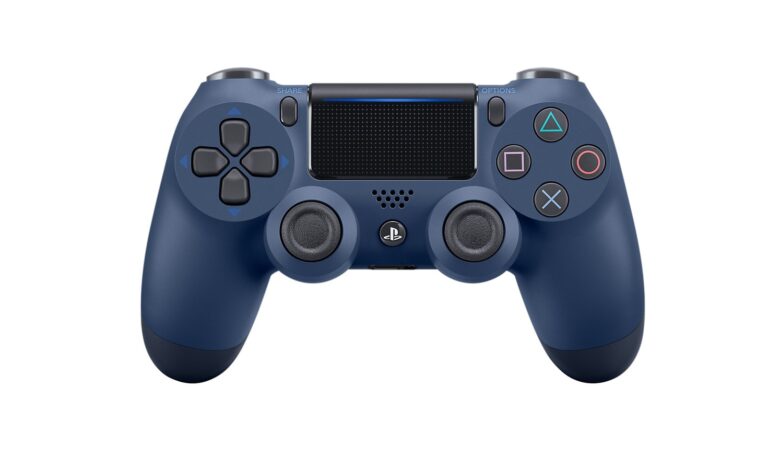
To sync a PS4 controller, turn the console on, connect the controller with a USB cable, and press the PS button. Sony’s page says “Connect the controller to your console using the included USB cable.” Once the player indicator lights up, you can unplug the cable.
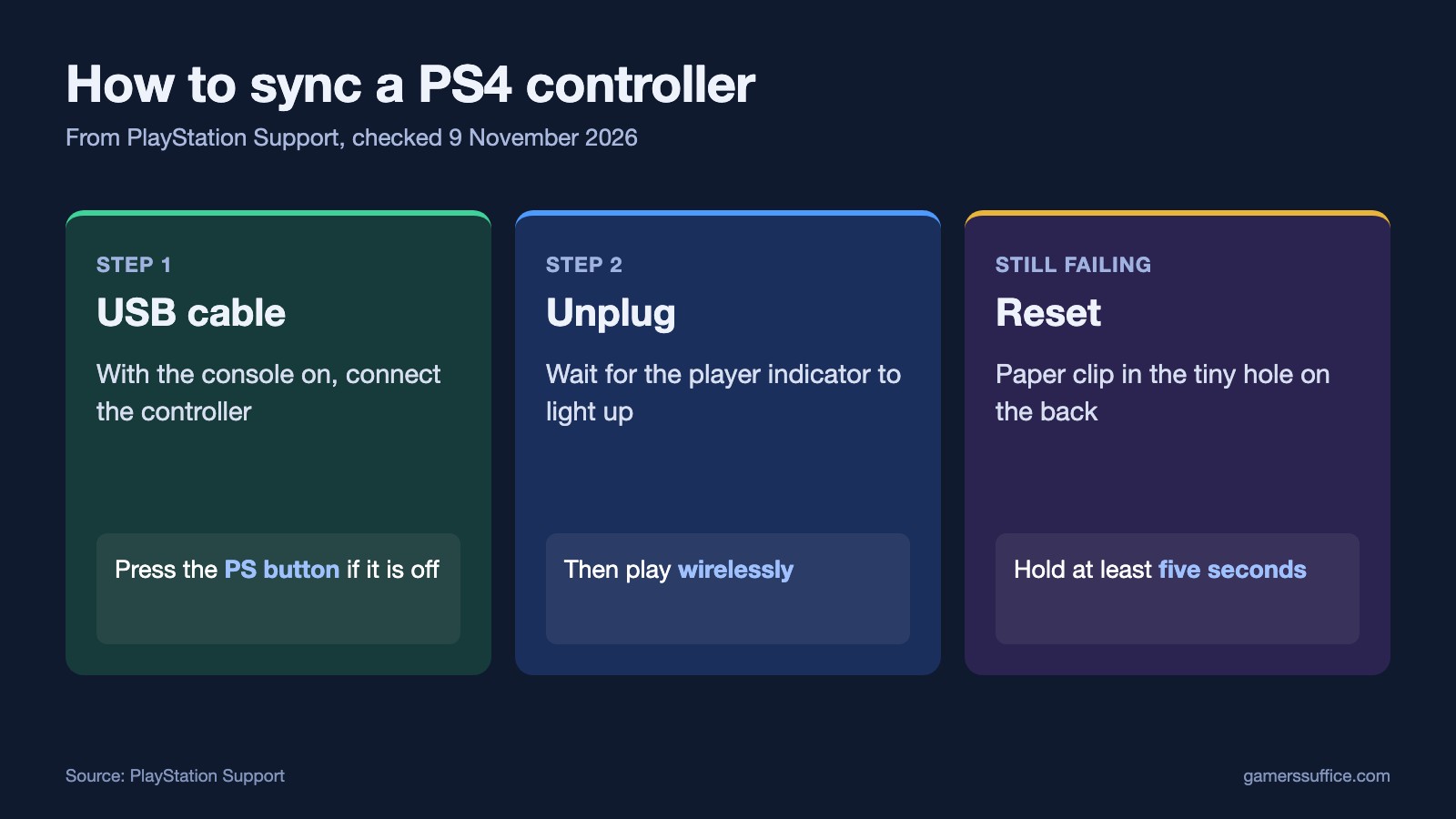
How to pair a DUALSHOCK 4 with a PS4
- “Make sure that your console is on.”
- Connect the controller to the console with the USB cable.
- “If your controller is turned off, press the PS button.”
- Wait for the light. Sony says “After the light bar blinks, the player indicator lights up.”
- Unplug when you’re ready. Sony says “When your controller has enough battery life, you can disconnect the USB cable and use your controller wirelessly.”
When we read Sony’s controller page on 9 November 2026, the cable was the only way it described for pairing with a console. Its page points to a separate guide for connecting other Bluetooth devices.
Moving a controller to a different PS4
Pairing is one console at a time. Sony says “your controller can pair with only one console at a time.” and “When you want to use your controller on another console, you need to pair it with that console.” So if your controller stops working after being used on a friend’s PS4, pair it again with the cable.
There’s a limit on the other side too: “You can connect up to four controllers to one console.”
If it still won’t sync, reset it
Sony says “If you’re having issues pairing your controller with your console, try resetting your controller.” Its reset steps are:
- “Turn off and unplug your PlayStation®4 console.”
- “Disconnect the DUALSHOCK®4 wireless controller from the official USB cable.”
- Find the reset button. Sony says “On the back of your controller, you will find a tiny hole” and that the button is inside it.
- Use a small, unfolded paper clip to “press and hold the reset button for at least five seconds.”
- Plug the console back in and turn it on. “Connect your controller to the PS4 console using the official USB cable.”
- “Press the PS button to pair your controller with the PS4 console.”
Wired or wireless
Some controllers can stay wired. Sony says in its controller settings guide “You can choose whether to communicate with your PS4 console using Bluetooth, or a wired connection with the USB cable.” The catch is “This setting will only appear if you have connected a CUH-ZCT2 series controller using a USB cable.” You’ll find it under Settings > Devices > Controllers.
If the controller is flat, start with our guide to charging a PS4 controller. If you need to contact Sony about a repair, here’s where to find your PS4 serial number. More guides are in our Console section.
Sources