If your PS4’s power light stays blue, or only blinks white, the console is frozen. That’s Sony’s own reading: its power-indicator page lists “Blinking white, solid blue or blinking blue Console error”. Sony’s first fix is to unplug the console, wait 3 minutes, then plug it back in and turn it on. If that fails, Sony’s next step is reinstalling the system software in Safe Mode, which erases the console. Sony itself says to try other things first, and they’re below.
“Blue light of death” is a name players use, not Sony’s. Sony’s page covers PS5 and PS4 together, so the same reading applies to a PS5.
When a blue light is normal, and when it isn’t
A blue light on its own isn’t a fault. Sony lists “Starts blue then transitions to white Powering on” as a normal start-up. The problem is when it never gets to white. Sony says “If the power indicator only blinks white, or if it remains blue and doesn’t transition to solid white, the console is frozen and needs troubleshooting.”
Two other lights look similar but mean something else:
- Solid white, but no picture. The console is on. Sony says “If your console is powered on but no picture is displayed, please visit PlayStation Repairs for troubleshooting steps.”
- Pulsing red (PS4). Sony’s meaning is “The console is overheating.” Its advice: “Turn off the console and wait until it cools down.” Then “Check to make sure the console vents aren’t blocked.” Our guide to an overheating PS5 covers the same checks.
Step 1: Unplug it for 3 minutes
- Unplug the console from the power.
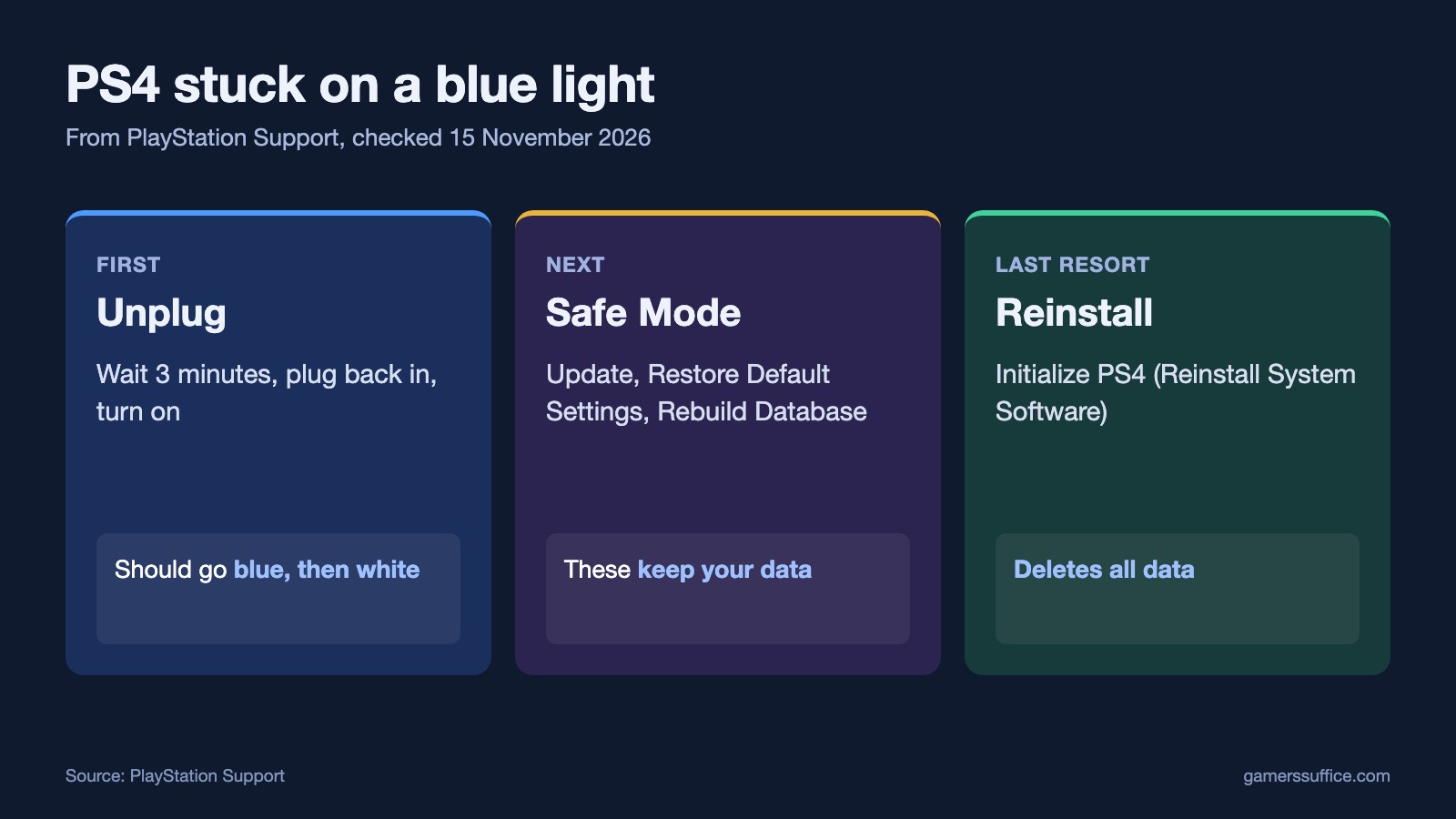
- Sony’s instruction is “Wait 3 minutes, plug the console back in, and turn it back on.”
- Watch the light. It should start blue and turn solid white.
Sony’s next line is “If the issue keeps happening, reinstall the console software using Safe Mode.” Before that, though, its reinstall page says “Before you reset, try the following:” and lists a manual system update and Safe Mode troubleshooting.
Step 2: Try the Safe Mode options that keep your data
If your console will start in Safe Mode, this is how Sony says to get there:
- “Turn off your console by holding the power button for three seconds.”
- Press and hold the power button again. Sony says “Release it after you hear the second beep — one beep sounds when you first press, and another seven seconds later.”
- “Connect the controller with the USB cable and press the PS button on the controller.”
Then try these, starting with the one that changes least. The order is ours; each description is Sony’s:
- Update System Software. It “Allows you to update the PS4 system software via direct download, a USB storage device or a disc.”
- Restore Default Settings. Sony says “Restoring default settings won’t delete content on console storage such as games, apps, screenshots, video clips, and saved data.”
- Rebuild Database. It “Scans the drive and creates a new database of all content on the system.”
For a PS5, see our guide to PS5 Safe Mode.
Step 3: Reinstall the system software (this erases everything)
This is Sony’s last step, and it wipes the console. Sony says “Reinstalling your console’s system software deletes all data on your console.” and “Selecting this option should be the last step when troubleshooting.” The Safe Mode option is Initialize PS4 (Reinstall System Software), which Sony describes as “Deletes all user data and removes PS4 firmware.”
You’ll need a computer and a USB drive. Sony’s PS4 steps:
- “Using a PC or Mac, create a folder named “PS4″ on a USB drive formatted as FAT32 or exFAT.”
- “Inside that folder, create another folder named “UPDATE”.”
- “Visit the PS4 console system software update page and select the “Reinstall system software” section.” Download the file, then “Save the file as “PS4UPDATE.PUP”.”
- “Plug the USB drive containing the installation file into your PS4 console.”
- Start the console in Safe Mode as above, then “Select Initialize PS4 (Reinstall System Software) .”
If the console doesn’t find the file, Sony’s tip is “Enter the folder names and file name using uppercase letters.”
On a PS5, the folder is different. Sony says “create a folder named “PS5″ on a USB drive formatted as FAT32 or exFAT.” Then “Save the file as “PS5UPDATE.PUP”.” and “Select Reset PS5 (Reinstall System Software) .” Our PS5 system software guide lists the current version.
If it still won’t start
Sony’s last line on the reinstall page is “If this process fails, you may need to send your PlayStation console for repair.” More guides are in our Console section.
Sources