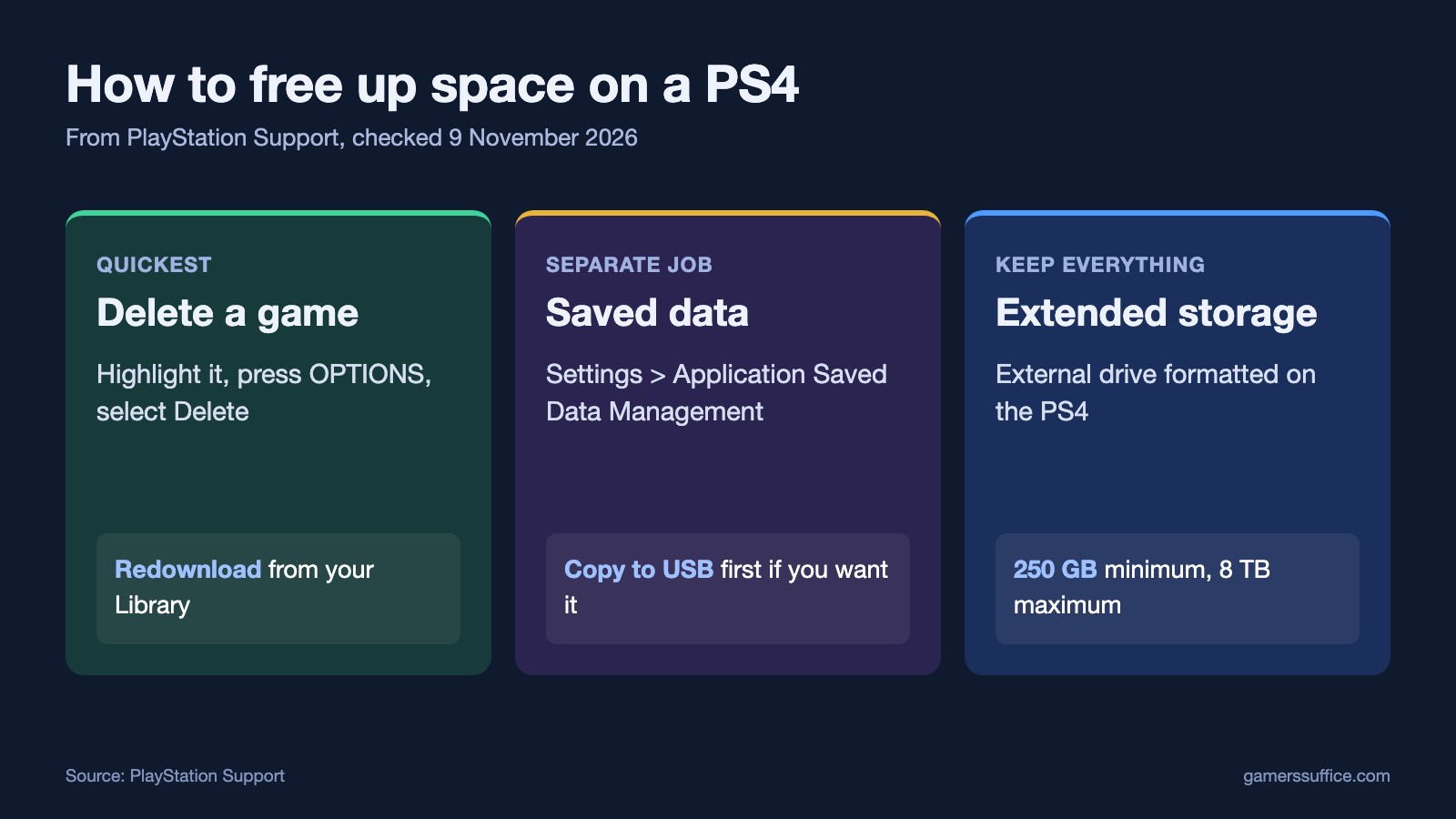
To free up space on a PS4, delete games you aren’t playing: highlight the game, press OPTIONS, and select Delete. You can get a digital game back later. Sony says “Don’t worry, you won’t lose access to any deleted games” and that “you can redownload the application from your Library whenever you like.”
If you’d rather keep everything installed, Sony’s other routes are USB extended storage or a larger internal drive.
Delete a game or app
- “Highlight the application you want to delete in the content launcher or Library”.
- Sony’s next step is “Press the OPTIONS button > Delete”.
Delete saved data
Sony lists saved data as a separate job from deleting a game. Check what you’re removing before you confirm.
- Go to Settings > Application Saved Data Management.
- Choose System Storage, Online Storage or USB Storage, then Delete.
- Sony says “Select a game and then select the files you wish to delete or” Select All.
- “Select Delete and then select OK to confirm your decision.”
To keep a copy first, Sony says “You can copy saved data to a USB drive that is connected to your PS4 console.” It adds that “you must be signed in to use this feature.”
Add a USB drive as extended storage
This avoids deleting anything. Sony says “If your PlayStation®4 console doesn’t have enough space to install a game, you can use an extended storage device to add more storage.”
Sony’s requirements:
- “PS4 console with system software version 4.50 or later.”
- An external hard disk drive: “SuperSpeed USB 5Gbps or later.”
- “250 GB minimum, 8 TB maximum capacity.”
To set it up, go to Settings > Devices > USB Storage Devices, select the drive and choose Format as Extended Storage.
What Sony says it can’t do
- “You can’t save application saved data, themes or screenshot/video clips to extended storage.”
- “You can only use one device for extended storage at a time.”
- “Connection via a USB hub is not supported.”
- Be careful when powering down: “Make sure you do not disconnect during the shutdown process or when putting the PS4 console into rest mode.”
Or replace the internal drive
Sony’s storage page also says “you can download the new game to USB extended storage, or upgrade your PS4 console HDD.” Its page links to a separate guide for the drive swap.
If a game disc is failing to install, see how to clean a PS4 disc. More guides are in our Console section.
Sources


