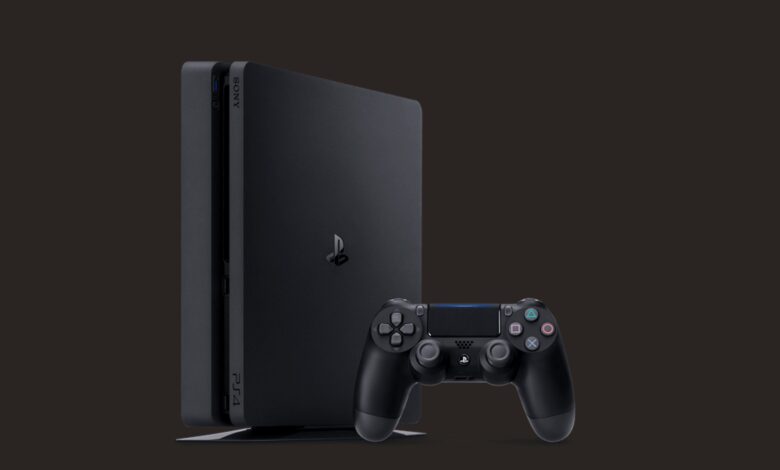
To clean a PS4 disc, Sony’s answer is a cloth and nothing else. Its PS4 troubleshooting page says “Clean the disc with a soft, clean cloth to remove any dirt or prints.” For a disc that’s scratched or properly dirty, Sony goes one step further and recommends a cloth made for the job.
Plenty of cleaning advice online reaches for household products. Sony’s support pages don’t. Here is Sony’s method, what Sony says to avoid, and what to try when a clean disc still won’t read.
How to clean a PS4 disc, Sony’s way
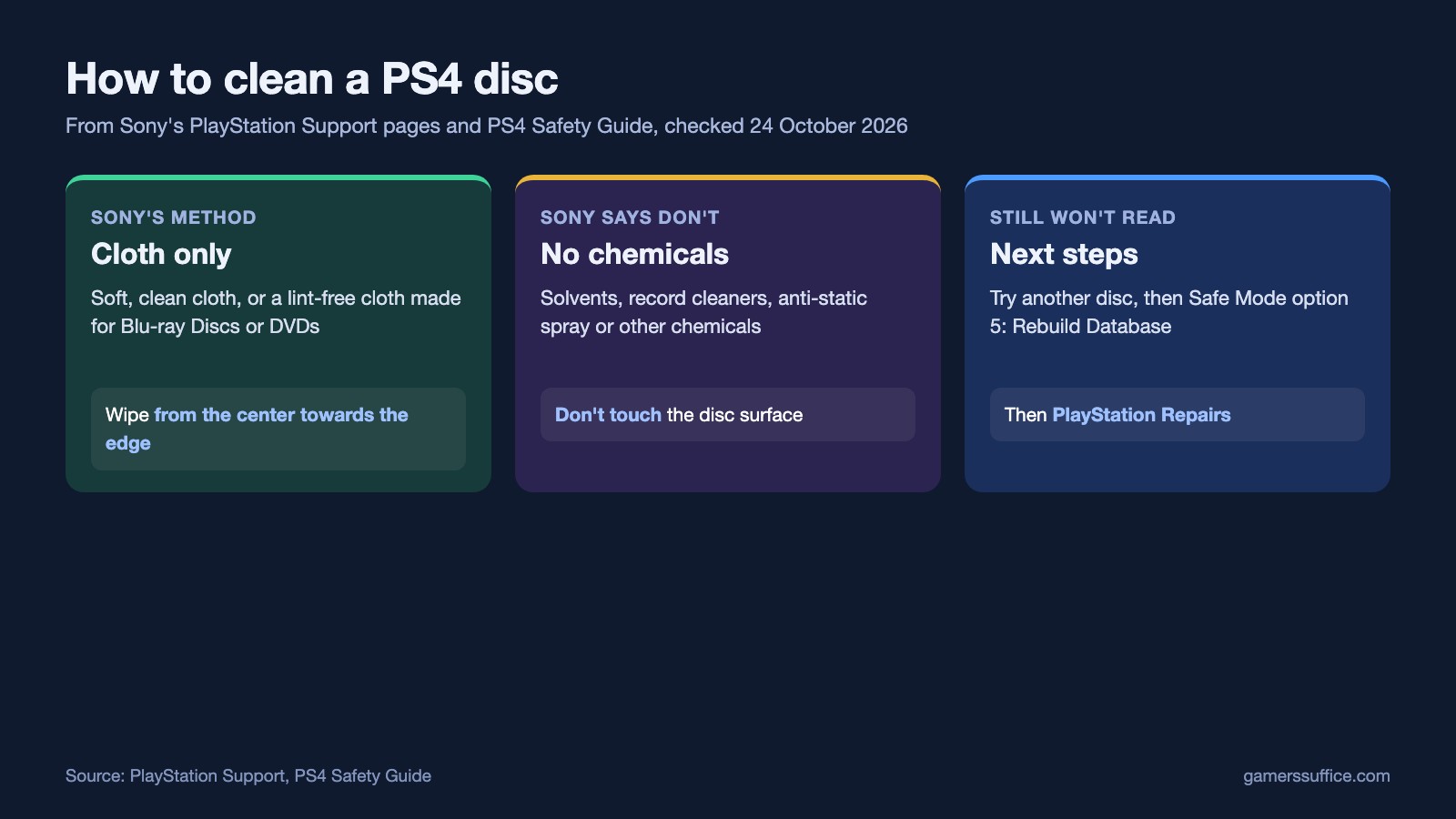
- Use a soft, clean cloth for dirt and fingerprints. For a scratched or dirty disc, Sony says to use “a lint-free cleaning cloth made specifically for cleaning Blu-ray Discs or DVDs.”
- Wipe outwards: “Clean the disc by wiping from the center towards the edge of the disc.”
- Don’t touch the disc surface when you handle it. Sony’s PS5 page puts it this way: take care not to leave fingerprints on the disc’s surface when you insert it.
- Reinsert the disc and try it again.
What not to use
Sony’s printed PS4 safety guide is direct about chemicals. It says not to use solvents, record cleaners, anti-static spray or other chemicals, because they can damage discs. It also says not to touch the disc surface when handling a disc.
When we checked Sony’s PS4 and PS5 disc troubleshooting pages and its disc-format page on 24 October 2026, none of them mentioned alcohol, toothpaste, glass cleaner or water. A dry cloth is the only method Sony describes.
When cleaning doesn’t fix it
Sony’s own troubleshooting order for a disc the PS4 can’t read, reinserting the disc after each step:
- Clean it, as above.
- Try another disc. Sony says to try inserting another game, Blu-ray disc or DVD. Note that “PS4™ consoles can’t play burned discs or audio CDs.”
- Rebuild the database. Access Safe Mode and select option 5, Rebuild Database.
- Reinstall the system software, as a last resort. Sony’s next option is Safe Mode option 7, and it warns: “Selecting Safe Mode option 7 deletes all information on the console, including the System Software.” Back up anything you need first.
- Repairs. If none of that works, Sony says to visit PlayStation Repairs. Have your PS4 serial number ready, since Sony recommends it when you contact PlayStation Support.
Some discs can’t be saved. Sony says not to use discs that are cracked or deformed, discs that have been repaired, or discs with stickers or paper labels on them. It also says some discs may not be playable because of scratches, dust, the quality of recording or the recording device.
If the PS4 keeps ejecting the disc
A disc that pops back out is a different fault. Sony’s fix:
- Turn off the PS4 from the quick menu (Power > Turn off PS4).
- “Unplug your PS4 console and hold down the power button for 30 seconds until you hear two beeps.”
- After five minutes, plug the console back in and turn it on.
- Update the system software from Settings > System Software Update.
Sony also says a loose manual eject screw could be causing the issue.
On a PS5
Sony gives the same cleaning advice for PS5 discs, plus one tip for consoles standing upright: “When your PS5® console is oriented vertically on the console stand, the labeled side of the disc should face left as you insert it.” If a PS5 freezes with some discs but not others, our guide to a PS5 that keeps freezing goes through Sony’s separate disc and digital fixes. Want to use your PS4 for films too? See our guide to playing DVDs on a PS4.
On Xbox, Microsoft’s steps are in our guide to an Xbox One that isn’t reading discs.
More PlayStation guides are in our Console section.
Sources
- PlayStation Support: Troubleshoot PS4 console disc issues
- PlayStation Support: Troubleshoot disc issues on PS5 consoles
- PlayStation Support: How to play video and music from discs and USB drives
- Sony Interactive Entertainment: PS4 Safety Guide (printed guide supplied with the console)