If your PS4 shows a picture but plays no sound, start with Sony’s own checks, in its order. Make sure the TV and any sound system aren’t muted. Check that the PS4 is sending audio to an HDMI device. Update the system software. Then try a different HDMI cable. Sony’s page says “Make sure your PS4 console audio output is set to an HDMI device.”
Below are Sony’s checks, then the PS4 settings that can send sound somewhere other than your TV.
Sony’s checks, in order
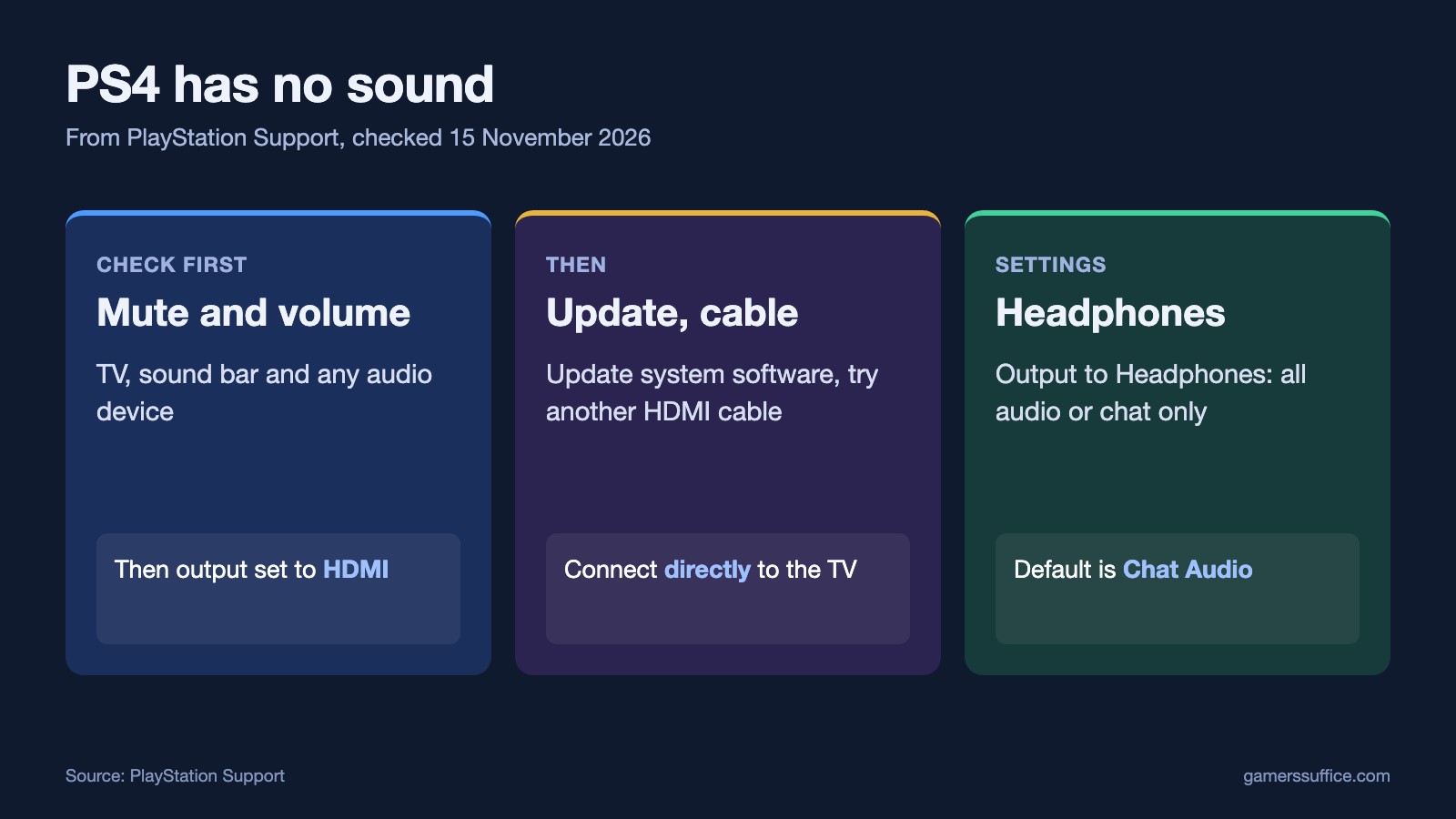
- Volume and mute. Sony says “Make sure your screen and any other audio devices aren’t muted and that the volume is loud enough.”
- Audio output. The PS4 should be sending audio to an HDMI device. The setting is covered in the next section.
- System software. Sony says “If you’re experiencing sound issues, try updating your PS4 console system software to the latest version.” To update over the internet, the console needs a connection. Here’s how to connect a PS4 to the internet.
- HDMI cable. Sony says “A faulty HDMI cable can cause audio problems.” Try another one.
- Connect directly. Sony says “Connect your PS4 console directly to the HDMI port on your screen.” Its advice for anything in between: “If you have other devices connected to your screen (sound bar, home theater, game capture devices, etc.), disconnect them to see if this fixes the issue.”
- Firmware. “Make sure your screen or audio device has the latest firmware version.”
If none of that works, Sony says “If you’re still having issues, please visit PlayStation Repairs.”
Did the sound go after a system update? Sony’s page doesn’t single updates out as a cause, so its checks are the same either way.
The settings that send sound somewhere else
Primary Output Port
Sony says the PS4 normally sets this itself: “the audio format that’s output from the PS4 console is automatically optimized for that device.” The exception is an optical cable: “If you connect a device to the PS4 console’s DIGITAL OUT (OPTICAL) port, you can manually change the audio output setting.” To check it, “Go to Settings > Sound and Screen .” and “Select Audio Output Settings > Primary Output Port .”
Two notes from Sony. “The CUH-2000 series doesn’t have an optical digital output terminal.” And “Please note, if your speakers can’t support the selected audio output from your PS4 console, they might get damaged.”
Output to Headphones
Sony says “You can set your audio output to your compatible headset for all audio, or only chat audio.” If it’s set to all audio, the headset gets all of it, so check this setting if you use one. “Go to Settings > Devices .” then “Select Audio Devices > Output to Headphones .” Sony says “The default setting is Chat Audio .”
Audio Format (Priority)
It’s in the same menu: “Select Audio Output Settings > Audio Format (Priority) .” Sony says “The default setting is Linear PCM .” If you’ve changed it, putting it back to the default is our suggestion, not a step on Sony’s page.
HDCP
This matters if a device connected by HDMI doesn’t support HDCP. Sony says “Your PS4 console can’t output video and audio if a device connected via HDMI isn’t compatible with HDCP (High-bandwidth Digital Content Protection).” “By default, HDCP is enabled for the HDMI output on your PS4 console.” The switch is under “Go to Settings > System .” Sony warns “Please note, all applications close when you make this change.” and “This feature works for gameplay only.” Films still need it on: Sony says “If you try to play a Blu-Ray, DVD, or DRM video through a streaming service, the PS4 console will display a message instructing you to enable HDCP to view the content.” More on that in our guide to playing DVDs on a PS4.
More guides are in our Console section.
Sources