
Steam’s built-in repair tool is Verify integrity of game files. Valve says to use it “if you are missing textures or other content in game or experiencing crashing while playing a game,” so Steam can check that the game’s files are installed correctly.
This guide covers that check, then Valve’s other repair steps when verifying isn’t enough: repairing the library folder, clearing the download cache, and what to do when a game you installed shows up as uninstalled. Every step comes from Steam Support’s own pages, checked on September 15, 2026.
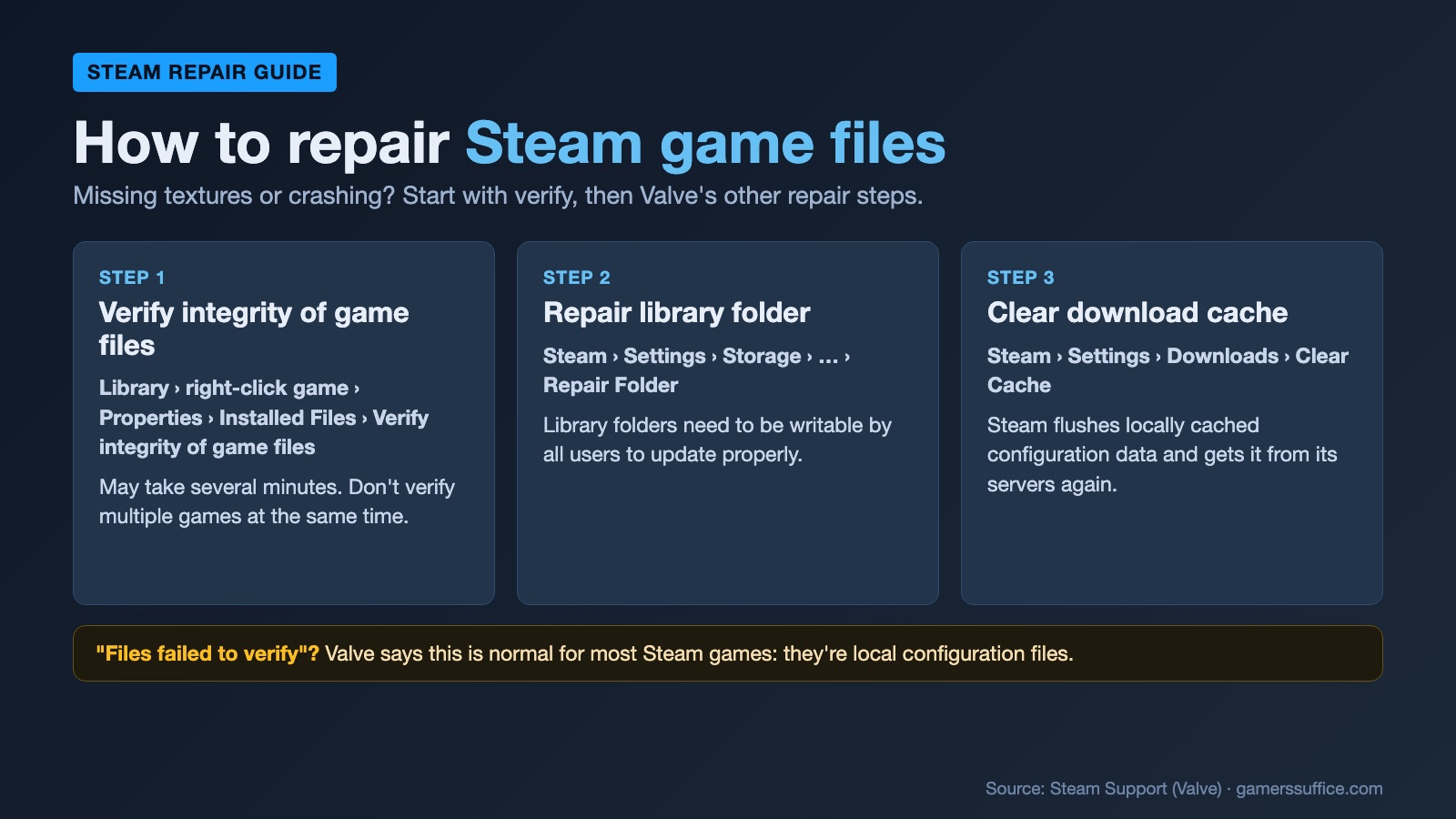
How to Verify Integrity of Game Files on Steam
- Restart your computer and launch Steam.
- Right-click the game in your Library. Or open the game’s Library page and click the gear icon on the far right.
- From the drop-down menu, select Properties.
- Select the Installed Files tab and click Verify integrity of game files.
Steam then checks the game’s files. Valve says this may take several minutes.
Earlier versions of this guide pointed to a “Local Files” tab. Steam Support’s current steps use Installed Files.
“One or more files failed to verify”
Don’t worry about this message. Valve says it is normal for most Steam games: the files that fail are local configuration files that shouldn’t be replaced as part of the process, and you can safely ignore the message.
Two things to avoid while verifying
- Don’t run it during other system-intensive tasks, such as defragmenting your hard drive or scanning for viruses.
- Don’t verify multiple games at the same time.
Why Steam Game Files Get Corrupted
Valve’s explanation is short: files on hard disks and other storage devices can become corrupted “because of bad hardware, software crashes, power surges etc.” Verifying finds the damaged files and fixes them where needed.
If Verifying Doesn’t Fix It: Valve’s Other Repair Steps
If Steam shows “An error occurred while updating” or “An error occurred while installing” a game, Valve says the specific reason appears in parentheses at the end of the message. Its basic troubleshooting list for those errors, in order, includes these fixes.
1. Restart your computer
Restart Steam as well as your PC. Valve says a restart flushes system states and caches and releases locks on files and other resources.
2. Clear the download cache
Go to Steam > Settings > Downloads > Clear Cache. This makes the Steam client flush locally cached configuration data and get it from Steam’s servers again.
3. Repair the library folder
Go to Steam > Settings > Storage, open the … menu and select Repair Folder. Valve explains that library folders need to be writable by all users to update properly, and sometimes those user permissions break and need to be refreshed.
4. Change your download region
Go to Steam > Settings > Downloads > Download Region. Valve suggests temporarily switching to a different region to use another set of content servers. You may need to try several.
5. Reinstall Steam to the same location
Valve says installing Steam again into the same location preserves all your installed games. Don’t uninstall Steam first: Valve warns that uninstalling Steam deletes all game content.
If the error continues, Valve’s advanced steps point outside Steam, such as your router, system updates, antivirus and firewalls. Certain firewalls can prevent Steam from talking to its servers.
Steam Shows an Installed Game as Uninstalled
According to Valve, games may appear uninstalled when Steam no longer recognizes the installation files. There are two fixes, depending on where the game is installed.
Game is in the default Steam folder
Games install to C:\Program Files (x86)\Steam\steamapps\common\ by default. If the game’s folder is still there, launch the game. Steam will prompt a download, and during that download it recognizes the existing installation files.
Game is in another folder or on another drive
- Open Steam’s Settings menu and select the Storage tab.
- Select the + button at the top to add the folder where your games are installed.
Once the library folder is added, your installed games should appear in your Steam Library. If Steam still doesn’t recognize them, Valve recommends reinstalling those games.
How to stop it happening again
- Always let Steam close properly when you shut down your computer.
- Valve doesn’t recommend external hard drives for Steam or Steam games.
Removed From the Old Version of This Guide
This guide previously suggested running Steam as administrator, deleting every file in the Steam folder except Steam.exe and steamapps, and a command-line repair of SteamService.exe. None of those are in Steam Support’s current repair steps, so we’ve taken them out. Valve does describe deleting Steam files, but only when moving a Steam installation, and it keeps the userdata folder along with steamapps and steam.exe.
Other Steam problems? See our guides to the Content File Locked error on Steam, Counter-Strike crashing on Steam and Civilization 6 not launching on Steam, or browse more PC gaming guides.
Sources
- Steam Support – Verify Integrity of Game Files
- Steam Support – Update & Installation Issues
- Steam Support – Installed games are appearing as uninstalled
- Steam Support – Moving a Steam Installation and Games
Updated September 15, 2026: rewritten against Steam Support’s current instructions.