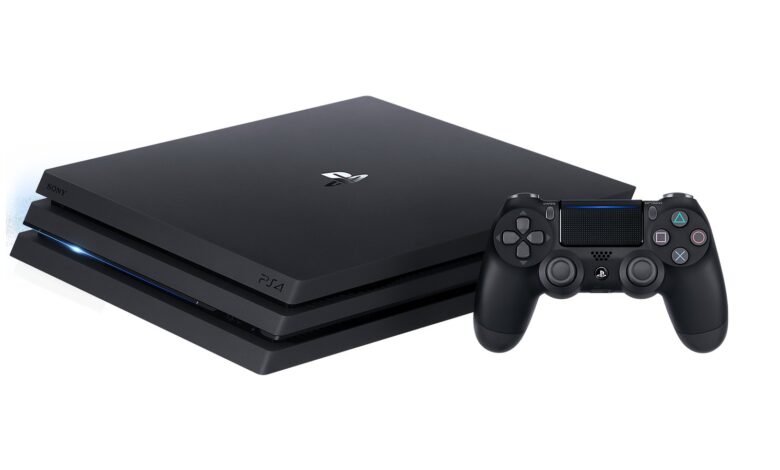
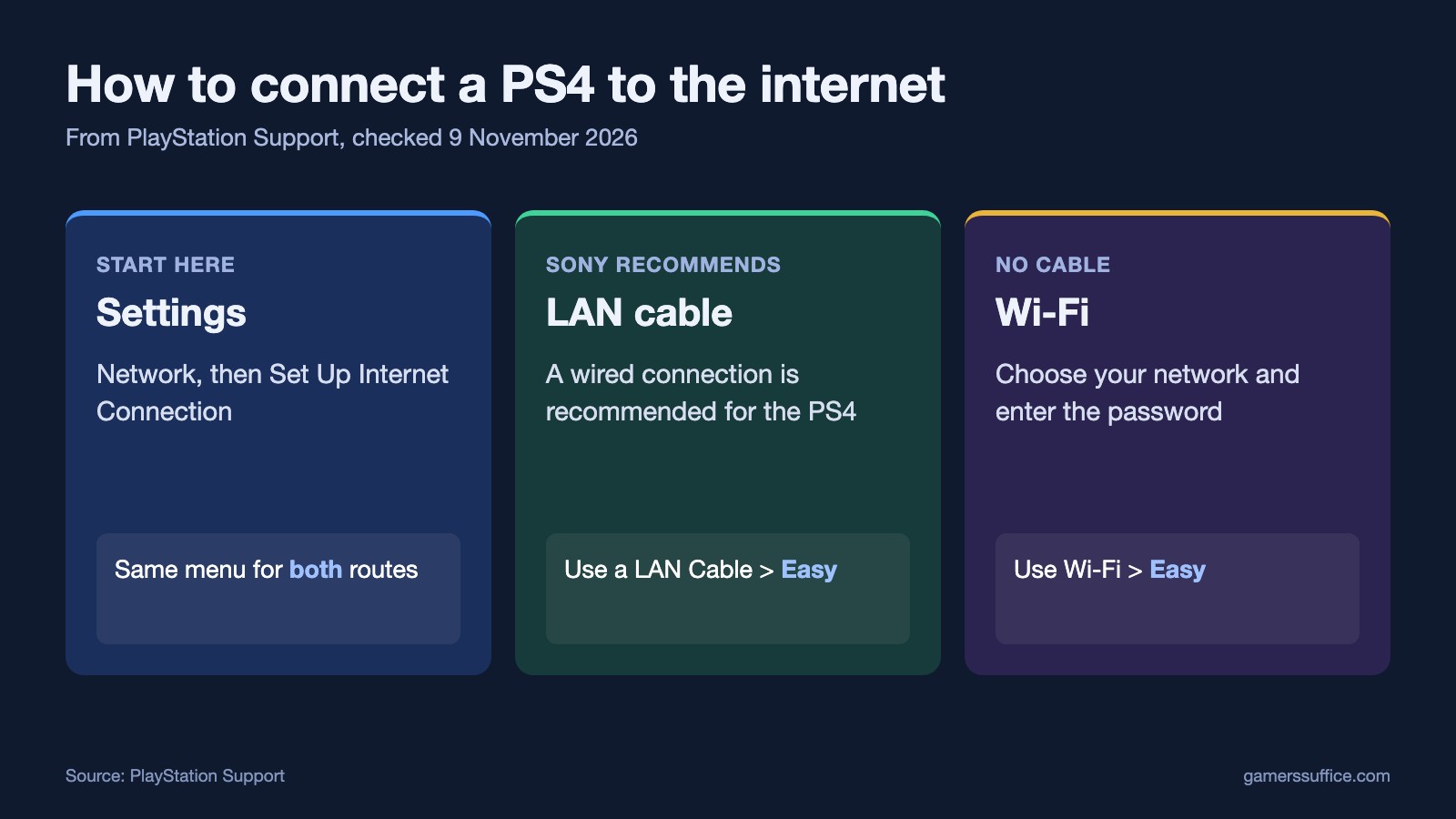
To connect a PS4 to the internet, go to Settings > Network > Set Up Internet Connection, then choose Use Wi-Fi or Use a LAN Cable, and pick Easy. Sony’s PS4 support hub says “A wired Internet connection is recommended for the PS4 console.”
Here are Sony’s steps for both connection types, and what to check if it fails.
How to connect a PS4 to Wi-Fi
- Go to Settings > Network > Set Up Internet Connection.
- Select Use Wi-Fi > Easy. New and saved networks appear.
- Choose your network. Sony says “The Wi-Fi network will display a padlock icon next to it if it’s password protected.”
- Enter the password if asked. Sony’s wording is “To connect, enter the Wi-Fi password (WPA, WPA2, WEP).” It adds “This password may be found on the back of your router.”
- Run the test. Sony says “If the connection is successful, you’re prompted to Test Internet Connection”.
If your network isn’t listed
Sony’s step is “If you can’t find your Wi-Fi network, scroll down, select” Set Up Manually, then adjust the settings. If your router has the feature, there’s a shortcut too: “When using an access point that supports WPS or AOSS”, scroll down and select Set Up Using WPS Button or Set Up Using AOSS.
How to connect a PS4 with a LAN cable
- Plug a LAN cable into the console and your router. Sony says “The location of the LAN port on the PlayStation console varies depending on the model of your console.”
- Go to Settings > Network > Set Up Internet Connection.
- Select Use a LAN Cable > Easy.
- Run Test Internet Connection when it’s offered.
Easy or Custom?
Custom lets you set things like the IP address and DNS by hand. Sony’s advice is “If you’re not familiar with these settings, please select Easy or ask your ISP or network administrator.” Our guide to changing DNS on a PS4 covers one of those settings.
After you connect
You’ll still need to sign in. Sony says “To access PlayStation services, sign in with your account details or create a new account.” It also says on its PS4 setup page “Before you can access any online features on your PS4 console, you need to update the system software to its latest version.”
If it won’t connect
Sony lists these checks:
- “Check the PlayStation status page for any server issues or maintenance that might prevent you from connecting.”
- “Check that your SSID, password, and security method are correct.”
- Move closer. Sony’s PS4 hub says “If you’re using a Wi-Fi (wireless) connection, place the PS4 console closer to the access point or router”.
If you get an error instead, see our guide to PS4 network connection errors. More guides are in our Console section.
Sources