Yes, you can charge a PS5 DualSense controller without the console. Sony documents three ways: a computer or other USB device, a USB charger that meets the USB standard, and the official DualSense Charging Station. What Sony does not say is that any phone charger will work. Its own support page says the opposite: “not all USB chargers will be capable of charging the DualSense wireless controller”.
Everything below is quoted or taken from Sony’s own support and accessory pages, checked on 14 October 2026.
What you can charge it from, according to Sony
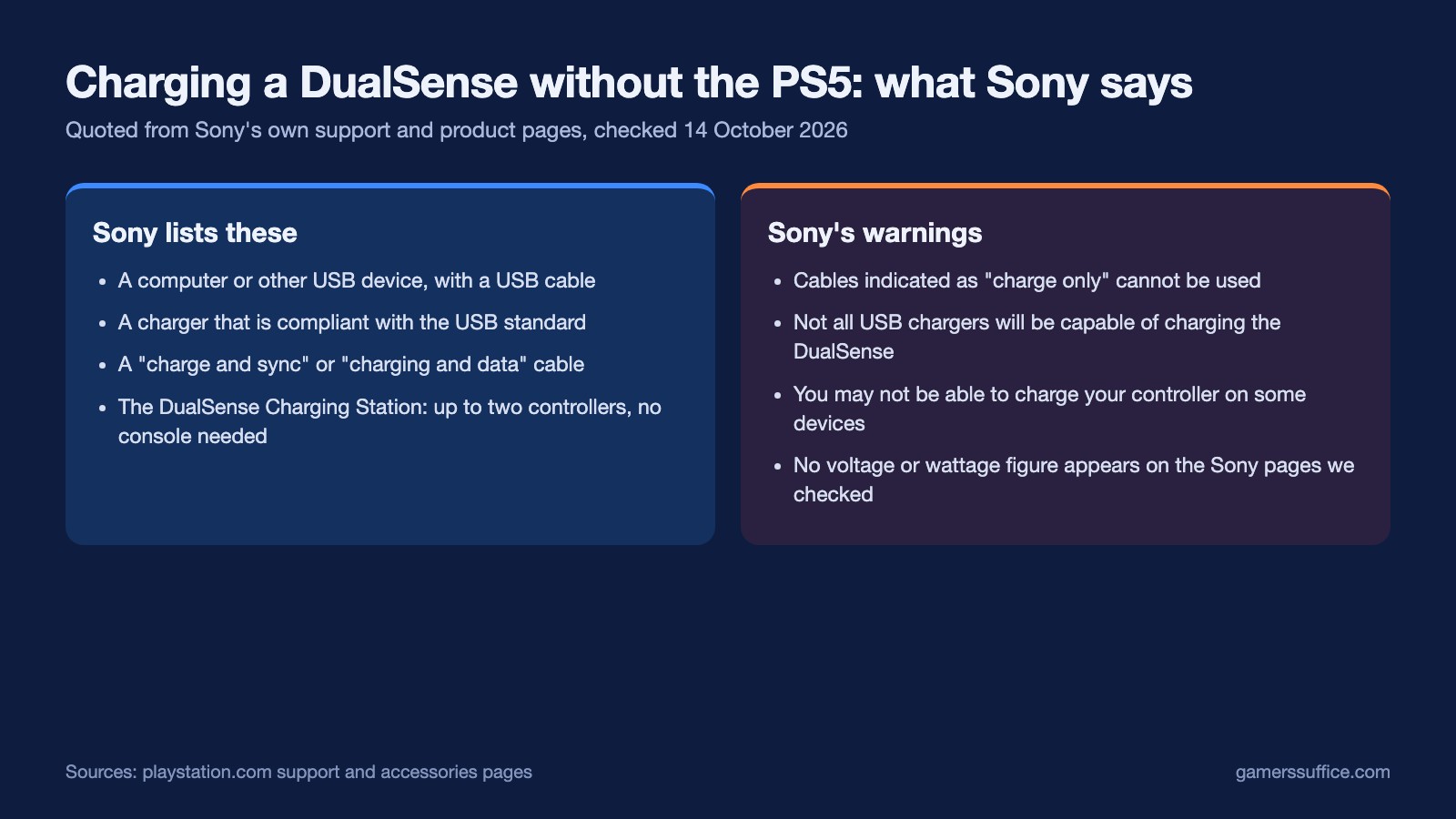
- A computer or another USB device. Sony’s charging page says “You can also charge your controller by connecting it to your computer or other USB devices using a USB cable”, and adds that you may not be able to charge it on some devices.
- A USB charger, with a condition. Sony says you “may also use a charger that is compliant with the USB standard if you have one available”, and warns in the next sentence that not all USB chargers will be capable of charging the controller.
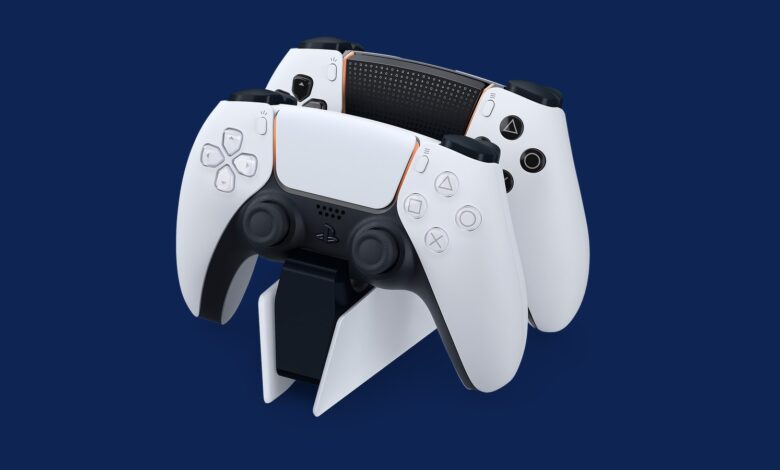
- The DualSense Charging Station. Sony’s own dock for up to two controllers.
The cable matters more than the charger
The cable is where Sony is most specific. Its troubleshooting steps say to try a cable labelled “charge and sync” or “charging and data”, and then state flatly: “Cables indicated as ‘charge only’ cannot be used.” Its charging page adds that the cable should comply with USB standards.
Sony’s troubleshooting order starts with the cable and the port, not the charger. Its first step is to connect the cable that came with your PS5 to a different USB port on the console, and its next is to try another cable of the right type.
What about phone chargers and “5V”?
Many of the pages ranking for this question say any 5V phone charger is fine. We checked four Sony pages on 14 October 2026: the charging page, the DualSense support page, the DualSense product page and the Charging Station page. None of them gives a voltage or wattage figure, and none mentions phone chargers by name. Sony’s only rule is that the charger should be compliant with the USB standard, plus the warning that not all USB chargers will work. If you use a phone charger, that is the standard it is being held to, and Sony does not promise it will work.
The DualSense Charging Station
Sony’s description is direct: “Charge up to two DualSense® or DualSense Edge® wireless controllers at the same time without having to connect them to your PlayStation®5 console.” It comes with its own AC adapter and power cord, and its model number is CFI-ZDS1.
On speed, Sony’s DualSense product page says controllers on the station charge as quickly as when connected to the PS5, so you free up the console’s USB ports without giving anything up.
If you can use the console: charging in rest mode
If the goal is simply not to leave the PS5 switched on, Sony’s own answer is rest mode. Its support page says “The controller’s battery can be charged while your console is either on or in rest mode.” A fully powered-off console is not one of the states Sony lists. To set it up:
- From the home screen, go to Settings > System.
- Select Power Saving > Features Available in Rest Mode.
- Set Supply Power to USB Ports to Always or 3 Hours. On some models you can also choose Adaptive (see below).
While it charges in rest mode, the controller’s light bar slowly blinks orange. When charging is complete, the light bar turns off.
There is an energy cost. Sony’s power-saving page says that if you enable any rest-mode features, the PS5 “doesn’t automatically lower power consumption below 0.5 W when entering rest mode”, and the more features you enable, the more power it uses in rest mode.
Adaptive charging, and which consoles have it
Adaptive charging optimises the charging time based on the controller’s remaining battery, which Sony says saves more power than the Always or 3 Hours options. It works with the DualSense, DualSense Edge, PS VR2 Sense controller and Access controller. Sony says to connect the controller to the console’s USB Type-C port with the included USB Type-C cable. If you connect a different device, it may not charge, or may not charge with optimised timing.
Sony’s own pages disagree on which consoles get it. The charging page says Adaptive is available on the CFI-2000 model group. The power-saving page says the CFI-2000/7000 model group. Both are Sony’s wording, and we have not resolved the difference.
Sony also notes that in rest mode, power stops being supplied if no device is connected after a certain amount of time.
How to tell it is actually charging
Press the PS button to open the Control Center and select Accessories to check the battery level. While the controller charges, Sony says an animated battery icon with a lightning bolt appears. When it is fully charged, the icon stops animating and shows three bars.
Sony’s DualSense support page also covers updating the controller’s own software: Settings > Accessories > Controller (General), then DualSense Wireless Controller Device Software. Our guide to the latest PS5 system software update covers the console side, and if you also own a PS4, here is how charging a PS4 controller works. More guides are in our Console section.
Sources
- PlayStation Support: How to charge your controller or accessory on PlayStation consoles
- PlayStation Support: How to connect a DualSense wireless controller
- PlayStation Support: How to change power-saving settings on PlayStation consoles
- PlayStation: DualSense Charging Station
- PlayStation: DualSense wireless controller