
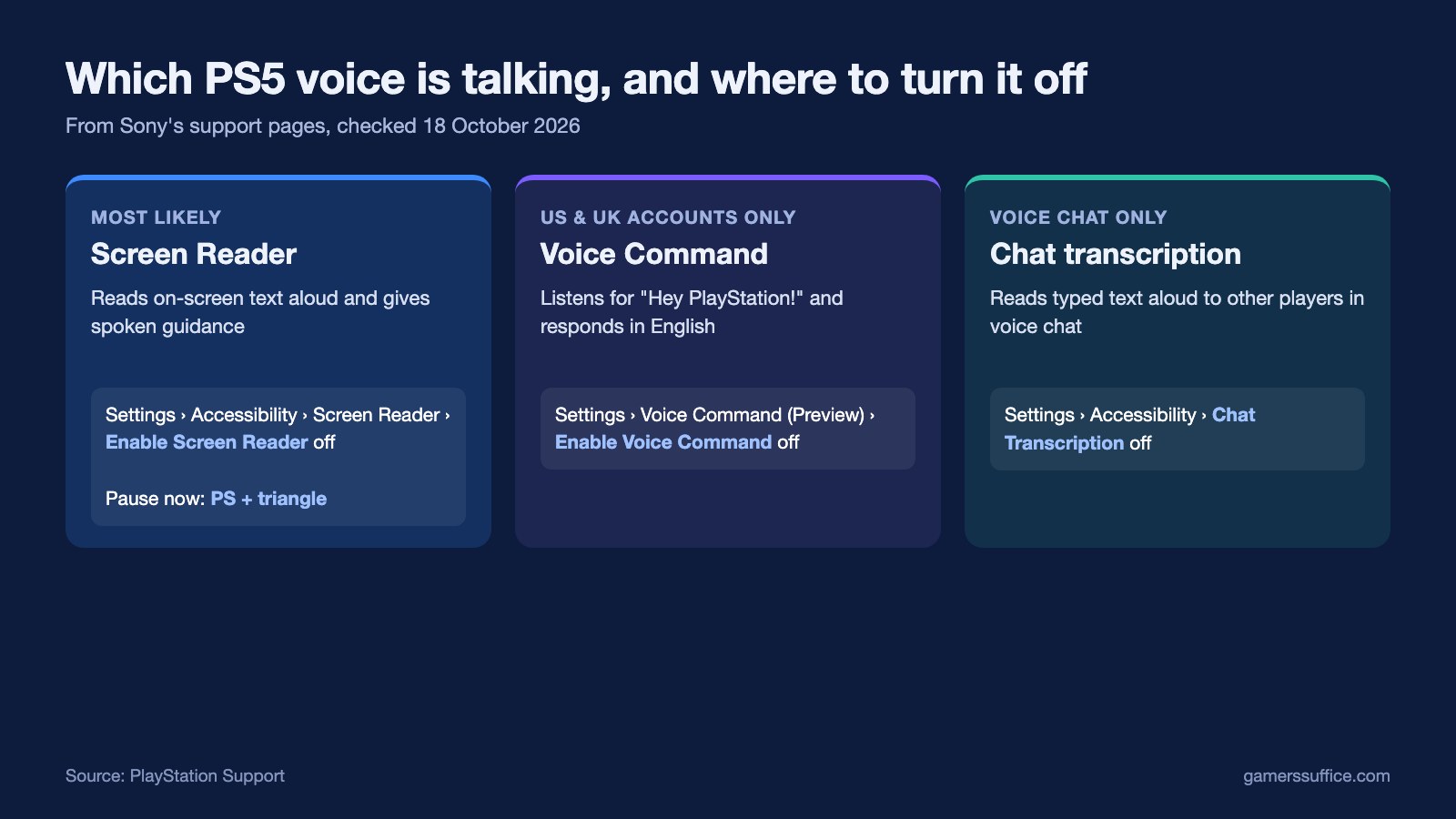
If your PS5 is reading the screen out loud, the most likely source is the Screen Reader. To turn it off, go to Settings > Accessibility > Screen Reader and switch off Enable Screen Reader.
The Screen Reader is not the only part of a PS5 that talks, though. Sony documents two more: Voice Command, and the read-aloud half of chat transcription. Each one is switched off in a different place, so the sections below go through all three. Everything here comes from Sony’s own support pages, checked on 18 October 2026.
Which voice are you hearing?
| What you hear | Most likely feature | Where to turn it off |
|---|---|---|
| Menus, buttons and on-screen text read aloud as you move around | Screen Reader | Settings > Accessibility > Screen Reader |
| The console answers after you (or someone nearby) says “Hey PlayStation!” | Voice Command (Preview) | Settings > Voice Command (Preview) |
| A synthetic voice in party or game voice chat | Chat transcription | Settings > Accessibility > Chat Transcription |
1. Turn off the Screen Reader
Sony describes it plainly: “The screen reader reads aloud on-screen text. It also provides spoken guidance for operating the console.” That is the voice most people want gone.
- Go to the home screen and select Settings > Accessibility > Screen Reader.
- Turn off Enable Screen Reader.
Why it was on in the first place: Sony’s printed PS5 Quick Start Guide says the Screen Reader switches itself on if the console is left idle for about a minute after you first turn it on during setup.
Need it quiet right now? While text is being read, press the PS button and the triangle button at the same time to pause or resume it. Pressing the PS button and R1 together starts reading again from the beginning.
Don’t want to lose it completely? The same Screen Reader menu has three settings Sony lists: Speech Speed (the rate of speech), Voice Type, and Voice Volume, a slider for how loud the spoken text is. Sony also says the Screen Reader’s language is tied to your console language, and that it is only available in certain languages.
If you switch it on and off often, Sony notes that if you add Accessibility to the control center, you can change these settings from there instead of going through Settings each time.
2. Turn off Voice Command (Preview)
Voice Command is the PS5 feature that listens for “Hey PlayStation!” and talks back. It is a limited preview: Sony says it is available only for accounts registered in the United States and the United Kingdom, and it listens and responds only in English. Outside those two countries, Voice Command isn’t available, so it can’t be the voice you’re hearing.
When Voice Command is enabled, Sony says the setting Listen for “Hey PlayStation!” is turned on automatically. To turn it off:
- From the home screen, select Settings > Voice Command (Preview).
- Turn off Enable Voice Command.
If you’d rather keep it but stop the wake phrase, the same menu has Listen for “Hey PlayStation!” as its own setting. It also has Speech Speed and Speech Volume, which are separate from the Screen Reader’s settings. By default, Sony says Voice Command stops listening after four seconds of inactivity.
One privacy setting is worth knowing about. Sony says voice data from Voice Command may include review of written transcripts by human reviewers unless you select Don’t Allow under Settings > Users and Accounts > Privacy > Voice Data Collection.
3. Chat transcription: the voice in party chat
Chat transcription works in both directions. In Sony’s words, it “converts the voices of other players in voice chat in parties and supported games, and reads aloud text you enter to other players.” Typed text is read out using the Voice Type the player picked during set-up.
So if a robotic voice only turns up in voice chat, it is probably a player who has typed a message with chat transcription switched on. Sony documents the on/off switch for your own console only: go to Settings > Accessibility > Chat Transcription and turn the chat transcription on or off. Sony’s page doesn’t describe a setting for muting someone else’s read-aloud messages, so we can’t point you to one.
Still hearing it?
Work down the table above. Start with the Screen Reader, since it is the one that reads menus aloud. Then check Voice Command if you’re in the US or UK, and chat transcription if it only happens in voice chat. If you’re also checking your console is current, our guide to the latest PS5 system software update covers what is current. And if your PS5 is set up for several people, our explainer on PS5 Console Sharing and Offline Play covers the settings that belong to the console rather than to one account.
More PlayStation guides are in our Console section.
Sources
- PlayStation Support: How to use accessibility settings on PS5 consoles
- PlayStation Support: How to control a PS5 console with your voice (Voice Command Preview)
- PlayStation 5 Quick Start Guide (printed and PDF), Sony Interactive Entertainment