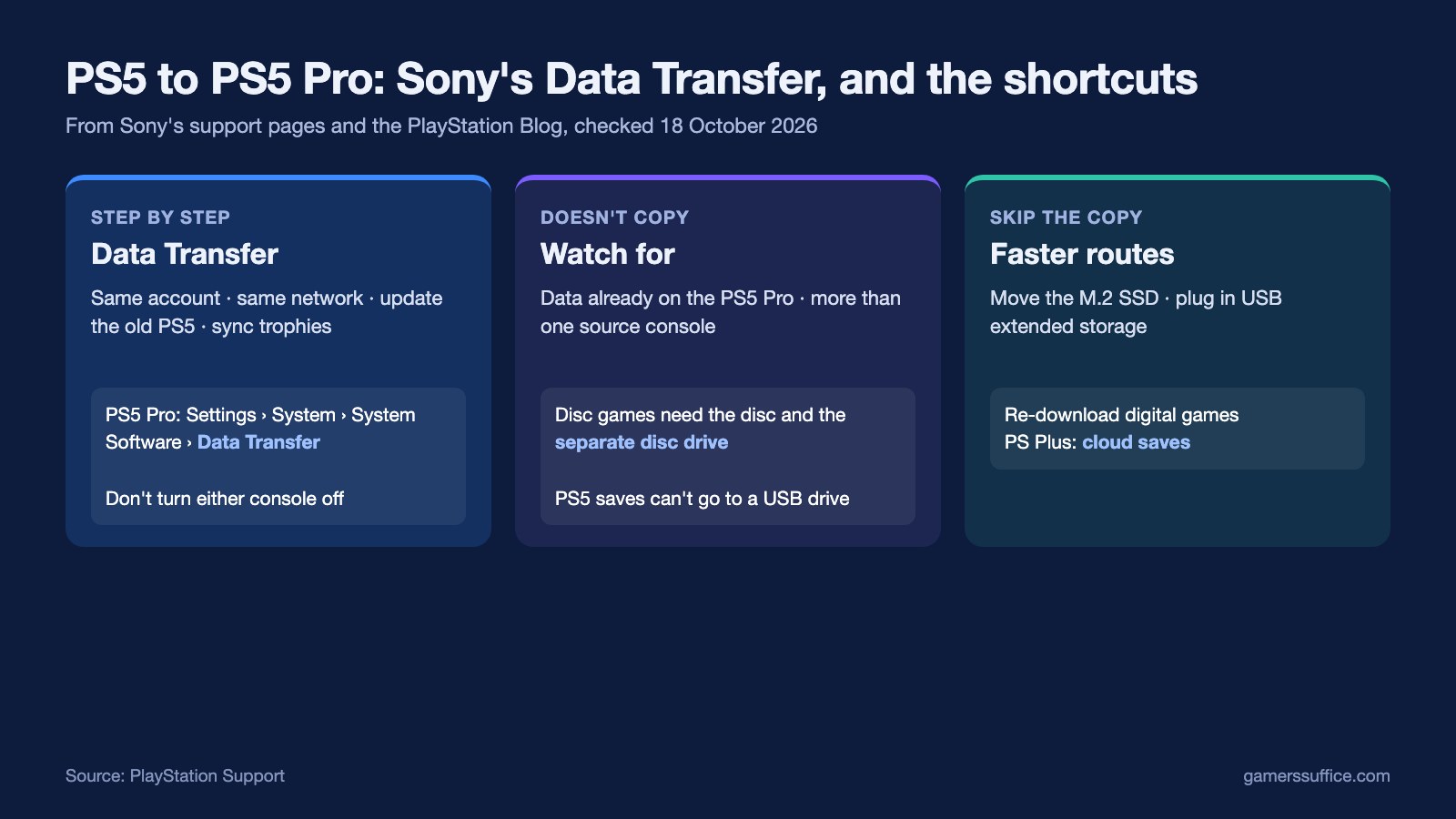
To move everything from a PS5 to a PS5 Pro, use Sony’s built-in Data Transfer. Sign in to the same account on both consoles, connect them to the same network, then on the PS5 Pro go to Settings > System > System Software > Data Transfer. You can also do it during the PS5 Pro’s first setup, when it reaches the data transfer stage.
That covers most cases. It also isn’t always the fastest route, and it skips some data. Below are Sony’s steps, what moves and what doesn’t, and the quicker options Sony lists, all from Sony’s own pages, checked on 18 October 2026.
Before you start: prepare the old PS5
Sony calls the old console the source and the PS5 Pro the destination. On the source console, Sony asks you to:
- Sign in to the same account that’s signed in on your destination console.
- Update the system software to its latest version. Our guide to the latest PS5 system software update shows what is current.
- Synchronize your trophy information.
- Connect your source console and your destination console to the same network.
Wired or wireless? Either works. Sony says that if your consoles normally use Wi-Fi, you can transfer faster by using a LAN cable (sold separately). If both consoles are already wired to your router, there’s no need to connect them to each other with a cable.
How to transfer data from PS5 to PS5 Pro
- Make sure the old PS5 is on.
- On the PS5 Pro, go to the home screen and select Settings > System > System Software.
- Select Data Transfer > Continue and follow the on-screen instructions.
Sony’s two warnings are the important part: “Do not turn off your source and destination consoles during data transfer. Doing this may cause data to be damaged or lost.” Sony also says not to change your network settings or run internet connection tests while it runs.
The PS5 Pro restarts on its own during the transfer, and you can use it once it comes back. Game data keeps copying after that restart. When a game’s thumbnail appears in your games home you can start playing it while the rest is still transferring. To check progress, open the control center and select Downloads/Uploads. Sony gives no estimate of how long a transfer takes, so we won’t guess at one either.
What transfers, and what doesn’t
| Moves to the PS5 Pro | Doesn’t move, or needs another step |
|---|---|
| User and account information for all users, even users who never signed in on the old PS5 | Any game or saved data that’s already on the PS5 Pro |
| Saved data for games playable on PS5 | Disc games: they install from the disc, and the PS5 Pro needs the separately sold disc drive |
| Screenshots and video clips | Data from more than one old console: Sony allows one source console per PS5 |
| Games playable on PS5 | Child accounts can’t transfer during the PS5 Pro’s initial setup |
| Console settings, such as console language, login and power saving, plus login passcodes |
On the disc question: Sony’s PS5 Pro compatibility guide lists the disc drive with cover as compatible, and the PlayStation Blog notes that a Disc Drive for PS5 can be purchased separately. Sony’s disc-game guide also says to keep the disc inserted every time you play the game, so disc games won’t run on a PS5 Pro without the drive. Our PS5 Pro vs PS5 comparison covers the rest of the hardware differences.
If you use a child account, Sony offers two routes: finish the PS5 Pro’s initial setup with the child account and then transfer, or set up with an adult account and transfer from both accounts during setup.
Faster options Sony lists
Data Transfer copies everything over the network. Sony also lists ways to move just the part you need:
- Move the M.2 SSD. If you installed an M.2 SSD in the old PS5, Sony says you can remove it and install it in the destination console to use the game data saved on it. The PlayStation Blog confirms that if your original PS5 has a M.2 SSD installed, you can insert it into your PS5 Pro.
- Plug in USB extended storage. If your games sit on a USB extended storage drive, Sony says to simply connect it to the new console to access your game data.
- Re-download digital games. Sony points out that you can download digital games from the game library of the new console.
- Cloud saves. If you’re a PlayStation Plus member, you can download saved data from cloud storage. Note that Sony says you can’t copy PS5 saved data from your PS5 console to a USB drive, so a USB stick is not a way to move PS5 saves.
Your subscriptions don’t need moving. Sony says that when you sign in to PlayStation on a new console, your subscriptions are applied to your account. One setting to check is Console Sharing and Offline Play, which works on one PS5 at a time. Our explainer on PS5 Console Sharing and Offline Play covers moving it to a new console.
Before you sell or give away the old PS5
Sony’s checklist for passing on a console:
- Record the serial number and store it somewhere safe.
- If you installed an M.2 SSD and want to keep it, remove it.
- Reset it from Settings > System > System Software > Reset Options, then select Reset Your Console.
Only reset once you’ve checked the PS5 Pro has everything. Sony is blunt about it: “This process cannot be undone, so be sure not to delete any important data by mistake.”
More PlayStation guides are in our Console section.
Sources
- PlayStation Support: Transfer data from a PS4 console or PS5 console to your PS5 console
- PlayStation Support: Transfer or dispose of your PlayStation console
- PlayStation Support: Compatibility guide for PS5 Pro consoles
- PlayStation Support: How to play PlayStation games on disc
- PlayStation Blog: Getting started with PlayStation 5 Pro


