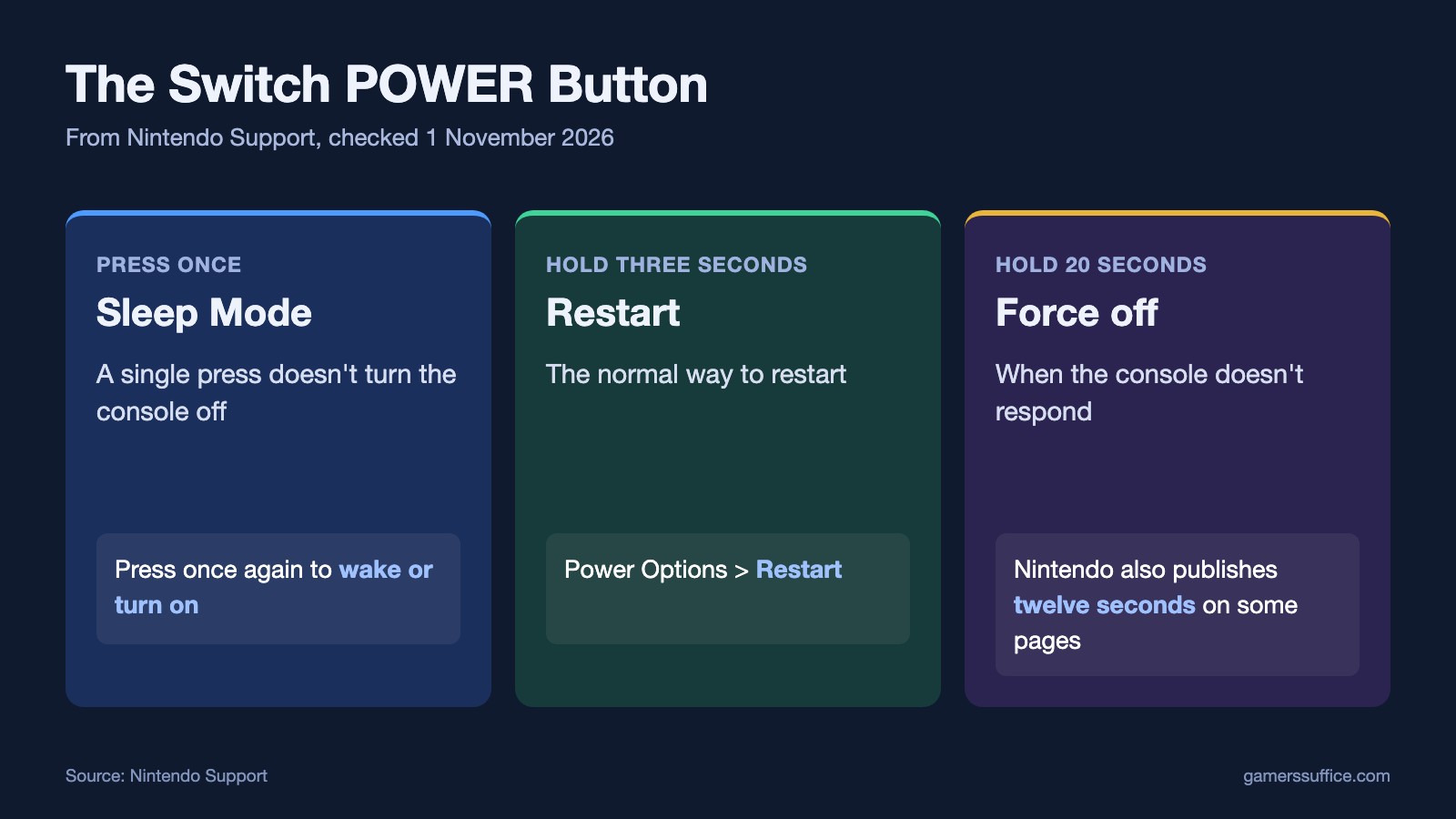
To restart a Nintendo Switch or Switch 2, hold the POWER Button for three seconds, select Power Options, then select Restart. Nintendo’s Switch instruction starts with “Press and hold the POWER Button for at least three seconds.”
One press won’t do it. Nintendo says “pressing the POWER Button once will not turn it off, but rather set it to Sleep Mode”, so a quick tap only puts the console to sleep. That article is written for Switch 2.
How to restart a Switch normally
- Press and hold the POWER Button for at least three seconds. On Switch 2, Nintendo’s wording is “hold down the POWER Button for three seconds, select Power Options”.
- Select Power Options.
- Select Restart.
If the Switch is frozen
If the menu won’t appear, force the console to shut down. Then turn it on again.
- Hold the POWER Button for 20 seconds. On the original models, Nintendo says “Hold down the POWER Button for at least 20 seconds to force the console to power off, then remove any game cards or microSD cards.” On Switch 2, the instruction is the same but names microSD Express cards.
- Remove any game card and memory card, as that instruction says. Nintendo’s rule for game cards is “Remove a game card only while on the HOME Menu, or when the system is powered off.”
- Press the POWER Button once. Nintendo’s Switch 2 article says “Press the POWER Button once to turn the console on again, then ensure it has the latest system update.”
Twelve seconds or 20?
You’ll see both numbers, and both come from Nintendo:
- Twelve seconds: “hold down the POWER Button for twelve seconds to force it to shut down.” This is from Nintendo’s Switch 2 page for problems with downloaded software.
- Twenty seconds: “Hold down the POWER Button for twenty seconds in order to force the system to shut down.” This is the same type of page for the original Switch.
- At least 20 seconds: Nintendo’s Switch 2 article on an unresponsive POWER Button says “press and hold down the POWER Button for at least 20 seconds to force the console to shut down.”
Nintendo’s frozen-console article uses both on one page. It opens with at least 20 seconds, and its later Maintenance Mode steps say “If the console does not respond, hold down the POWER Button for twelve seconds to force it to shut down.” We’d hold for the full 20 seconds, since that’s the figure on Nintendo’s dedicated frozen-console pages. That choice is ours, not a Nintendo statement.
If the screen is black
A black screen can be a power problem. Nintendo’s steps differ here:
- Take the console out of the dock. Nintendo says “Remove your Nintendo Switch system from the dock when completing the following troubleshooting.”
- Unplug the adapter. “Leave unplugged for 30 seconds to reset the AC adapter.”
- Hold the POWER Button for 20 seconds. Nintendo describes the result this way: “This performs a forced shut down on the console.” The Switch 2 version also says “Hold down the POWER Button on the console for 20 seconds.”
- Plug the adapter back in, then press the POWER Button once.
Our Switch not charging guide continues from there if it still won’t turn on.
Restart isn’t the same as Maintenance Mode
Holding the volume buttons while you power on opens a different menu. Nintendo says “Keep holding down the volume buttons until the menu for Maintenance Mode appears.” That’s where you’d find Initialize Console Without Deleting Save Data, which is a much bigger step than a restart.
Nintendo says of that option, “Important: Save data, screenshots, and user information will not be deleted.” It also warns “However, any software saved on the microSD card will no longer be usable.” Don’t use it as a substitute for restarting.
If restarting doesn’t stop the problem, Nintendo’s last step is “If the freezing continues to the point where it affects your gameplay, send in the console for service.”
If you’re restarting because of a connection problem, our Switch Wi-Fi guide has Nintendo’s next steps. More guides are in our Console section.
Sources
- Nintendo Support: General problems with downloaded software (Nintendo Switch)
- Nintendo Support: General problems with downloaded software (Nintendo Switch 2)
- Nintendo Support: Nintendo Switch console freezes or will not power off
- Nintendo Support: Nintendo Switch 2 freezes or will not power off
- Nintendo Support: Unable to power off Nintendo Switch 2
- Nintendo Support: Nintendo Switch has no power or a blank screen
- Nintendo Support: Nintendo Switch 2 has no power or a blank screen


