
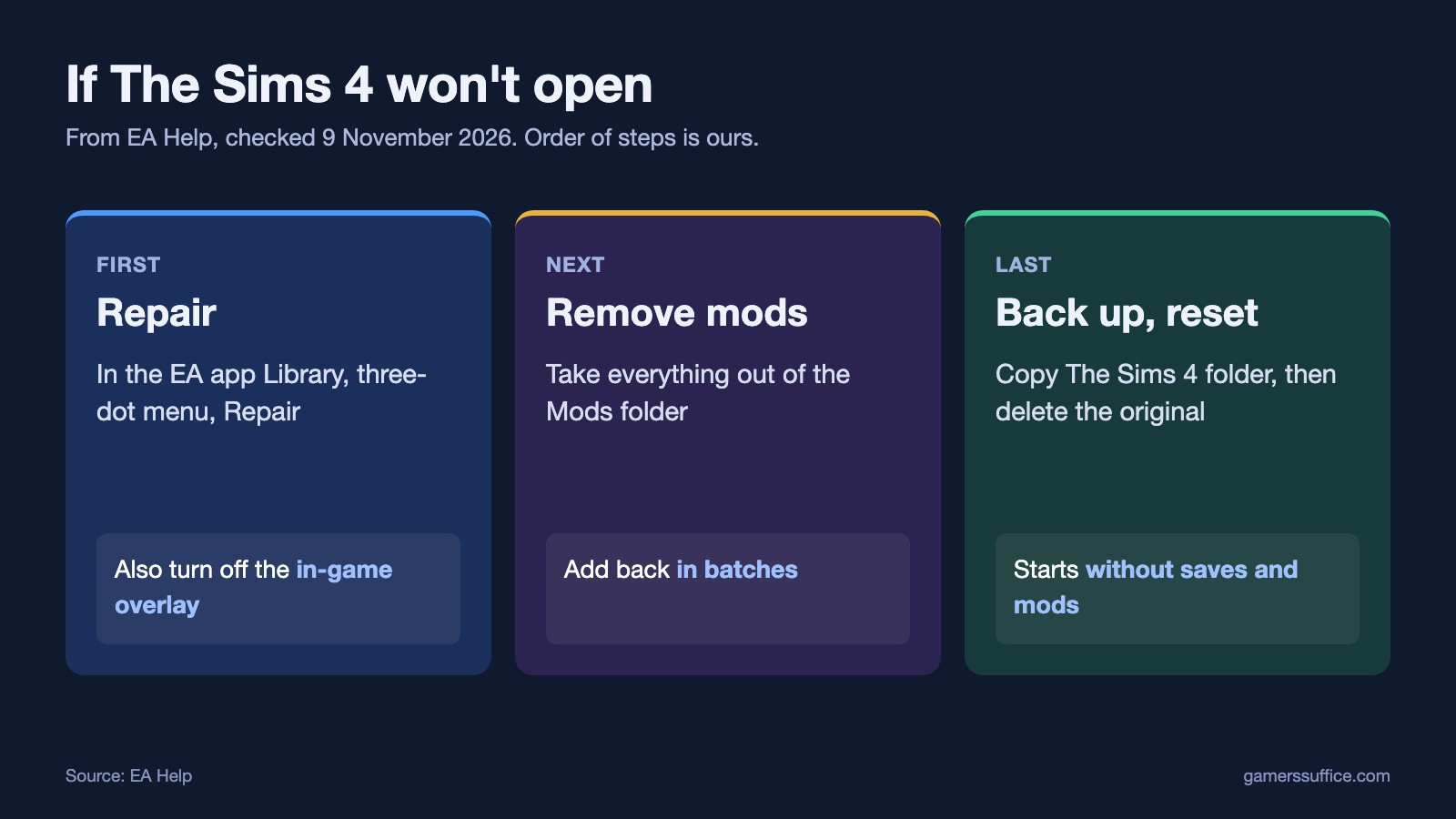
If The Sims 4 won’t open, start with the two fixes that change the least: repair the game in the EA app and turn off the EA app’s in-game overlay. If it still won’t start, test it without your mods and saves by backing up and resetting The Sims 4 folder. EA’s help page says “If a game isn’t loading in the EA app, try repairing your game file.”
These steps come from three EA help pages. They cover PC and Mac, and the order is ours, starting with whatever changes the least.
1. Repair the game
- Open the EA app and go to your Library.
- EA says “Find the game you want to repair and select the three-dot menu on the game tile.”
- Choose Repair, and launch the game when it finishes.
2. Turn off the in-game overlay
EA says “The in-game overlay setting can sometimes make your game crash.” On PC, it suggests you “try turning off the in-game overlay to see if it’s causing your issue.”
- Select your profile thumbnail in the EA app.
- Open Settings and choose Application.
- “Toggle the In-game overlay button to turn the setting off.”
Turn it back on afterwards. EA says “Make sure to turn in-game overlay back on once your issue is fixed”.
If the EA app says the game is still preparing, EA also suggests you “Check for background applications that might limit the EA app’s performance and close them.”
3. Take your mods out
EA’s method is to “Remove all your Mods from the “Mods” folder and add them back in batches” until the problem returns. If the game shows error code 110, EA says “This error code usually appears after a game update, and is caused by outdated Mods.”
Be careful after a patch. EA warns “If you select Save and Exit before re-enabling Custom Content and Mods, content may be removed from your saved game.” Our guide to Sims 4 mods after an update has EA’s full order.
4. Back up, then reset The Sims 4 folder
This tests the game without your saves and mods. Make the backup first, because the reset deletes the folder.
- In your Documents, open the Electronic Arts folder and find The Sims 4 folder.
- Copy it to your desktop and rename it. EA’s example: “Change the name of the folder to something you’ll remember like Sims 4 Backup”.
- Go back to the original folder. EA’s Windows step is “Right-click on the folder, and select Delete”. Then empty the Recycle Bin and restart your computer. On a Mac, use Finder, delete the folder, empty the Trash and restart.
- Launch The Sims 4. EA says “The game will start without your save files and mods.”
What the result tells you
- It runs: EA says “If the game runs normally, the problem is due to something in your previously saved games or with content you’ve downloaded from the Gallery.”
- It still fails: EA says “If the game doesn’t run normally after a reset, the problem wasn’t caused by any of your save files or downloaded content, and you can restore your backup folder.”
Finding the bad file
EA’s approach is to “Copy each of these folders back into The Sims 4 folder one-by-one”, testing the game each time. If the saves folder is the one that breaks it, try the save files one at a time. When you find the culprit, EA says “Delete this file both from The Sims 4 folder in your Documents and also from your backup folder.”
Once the game runs again, here’s how to use the debug cheats in The Sims 4. More guides are in our PC section.
Sources