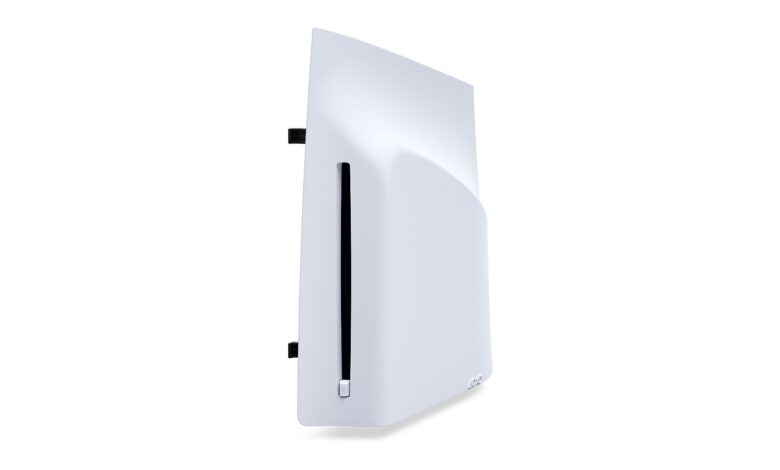
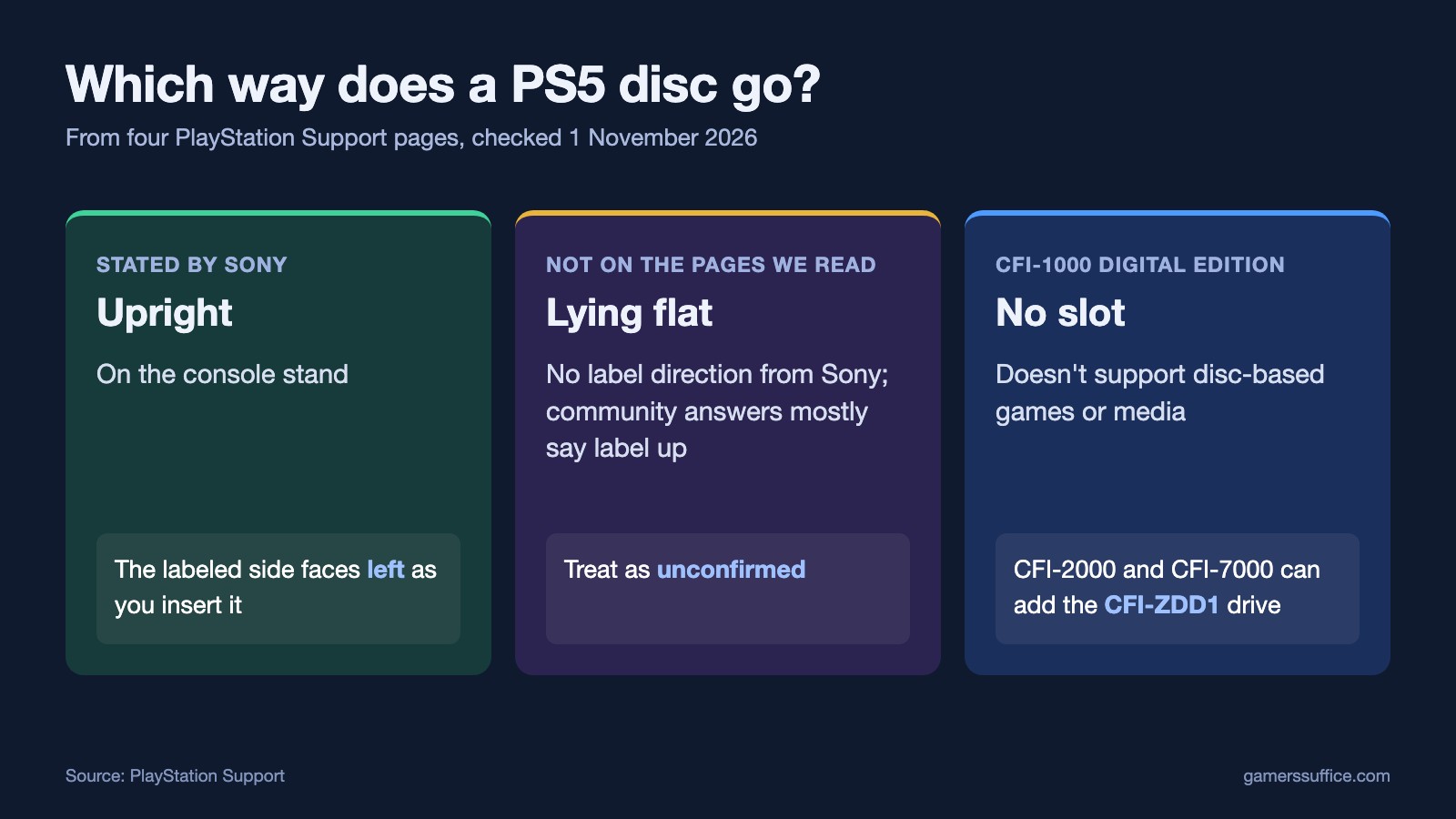
On a PS5 standing upright, the printed label faces left as the disc goes in. Sony’s support page says “When your PS5® console is oriented vertically on the console stand, the labeled side of the disc should face left as you insert it.”
That’s the only orientation we found Sony spell out. Below is what we could and couldn’t confirm for a console lying flat, which PS5 models have a disc slot, and what to do when a disc won’t read.
What about a PS5 lying flat?
We read four Sony support pages on 1 November 2026, the ones listed under Sources, and none of them gives a label direction for a PS5 on its side. Community answers mostly say label up, and at least one says the reverse. Treat label up as unconfirmed advice rather than Sony’s instruction.
If a disc doesn’t read, our suggestion is to take it out and try it the other way. That’s our advice rather than Sony’s. Sony’s own troubleshooting starts with “Reinsert the disc into your console after each of these steps.”
How to insert the disc
- Keep your fingers off the surface. Sony says “Take care not to leave fingerprints on the disc’s surface when you insert it.”
- Line it up with the slot, label left on an upright console.
- Insert it. For movies, Sony says “To play a Blu-ray Disc™ or DVD, insert the disc into the disc slot. Disc Player appears on your media home, and playback can begin.”
Does your PS5 have a slot?
- Original Digital Edition: “The PS5 Digital Edition console (CFI-1000 model group) doesn’t support disc-based games or media.” There’s nowhere to put a disc.
- Newer digital models and PS5 Pro: Sony says “You may add a disc drive (CFI-ZDD1 series, sold separately) to use discs on CFI-2000 model group PlayStation 5 Digital Edition consoles and consoles from the CFI-7000 model group.”
- Setting up that drive: Sony says “the disc drive is compatible only with PS5® consoles (CFI-2000/7000 model group).” and “Internet connection required to pair disc drive and PS5 console upon set up.” Before you start, it tells you to “Go to the control center and select Power > Turn Off PS5.”
Discs that won’t work
Direction won’t help if the disc itself isn’t supported. Sony’s page starts its format list with “PS5 console supported disc formats Ultra HD Blu-ray™ Blu-ray Disc™ BD-ROM” and says “PS5 consoles can’t play burned discs or audio CDs.”
Some discs can do harm. “Don’t use the following discs. Doing so may damage your console. 8 cm discs” is how Sony opens that list, which also includes “Discs that have stickers or paper labels on them.”
If the disc won’t read, Sony’s order
- Clean it. Sony says “Clean the disc with a soft, clean cloth to remove any dirt or prints.” Our guide to cleaning a PlayStation disc covers what not to use.
- Test the drive. “Try inserting another game, Blu-Ray disc, or DVD.”
- Rebuild the database: “Access Safe Mode and select Clear Cache and Rebuild Database.”
- Reset only as a last resort, because “Selecting Reset PS5 (Reinstall System Software) deletes all information on the console.”
- Still stuck? Sony says “If these troubleshooting steps don’t fix the issue, please visit PlayStation Repairs.”
If a game keeps crashing rather than failing to load, see why a PS5 keeps freezing.
If a disc is stuck
Sony has a manual eject procedure: “If a disc gets stuck in your PS5™ console, you can manually eject it by following these steps.” It warns “Do not forcibly pull the disc from the optical drive.” and “Don’t turn on or play on your console with the cover off.”
Thinking about a different console? Here’s how the PS5 Pro compares with a PS5. More guides are in our Console section.
Sources