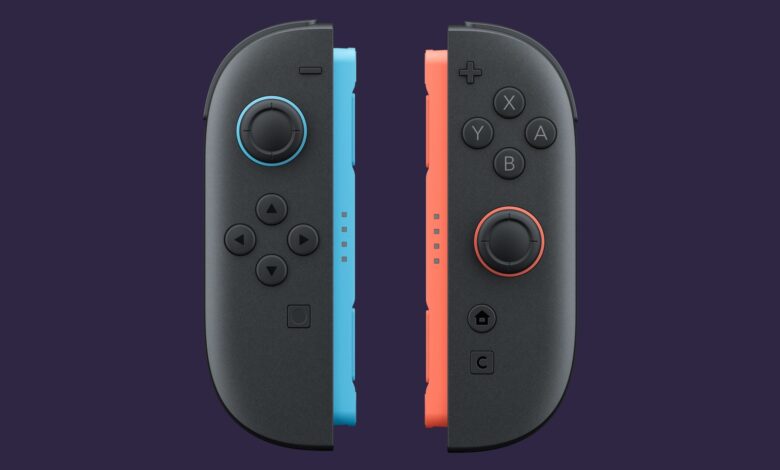
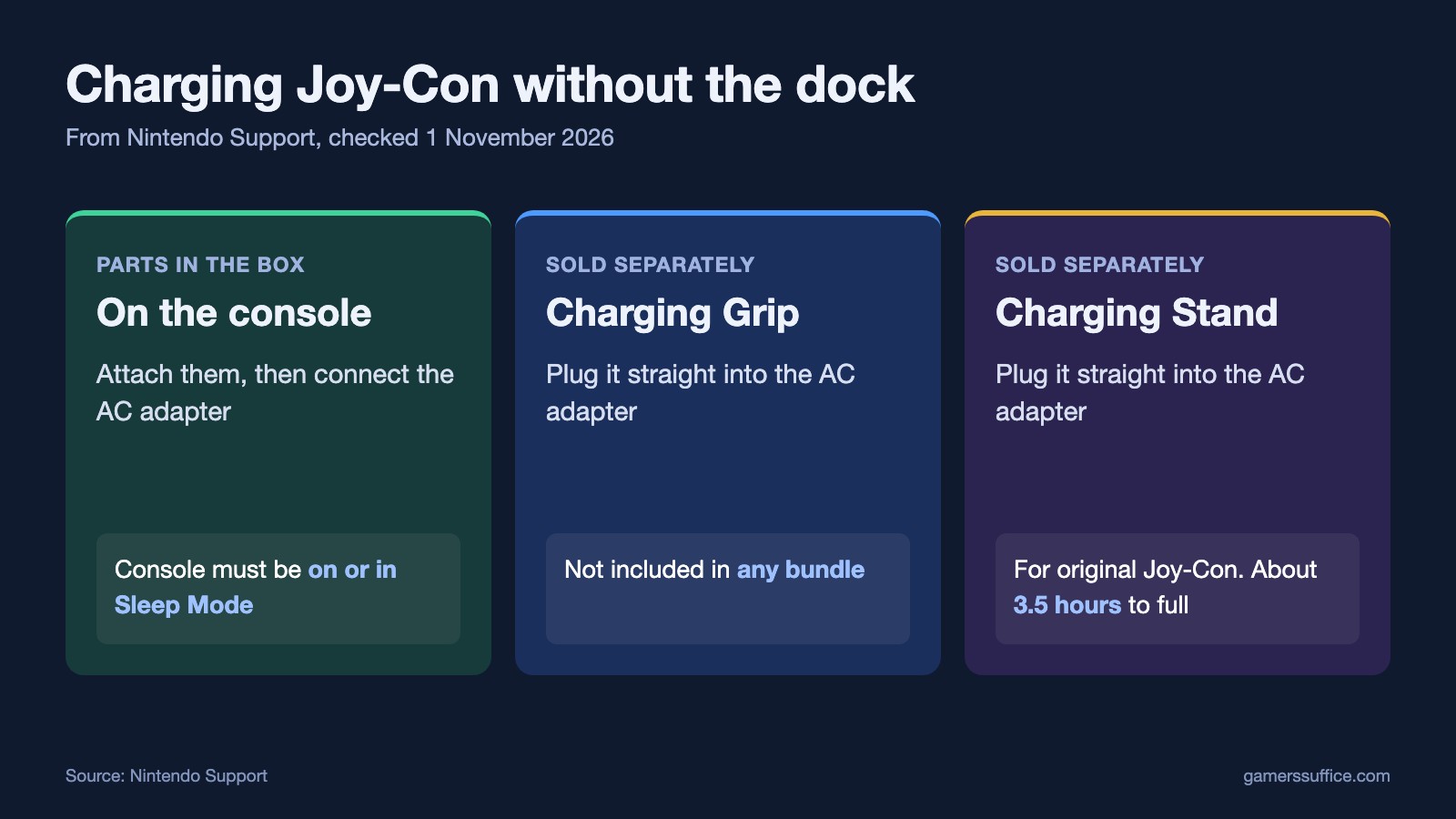
You don’t need the dock to charge Joy-Con. Attach them to the console and plug the AC adapter straight into the console, or use a Charging Grip or Charging Stand plugged directly into the AC adapter. Those are the routes Nintendo documents. The catch with the first one is that the console has to stay on or asleep: Nintendo says “In order for the Joy-Con to charge while attached to the Nintendo Switch console, the console must be connected to the AC adapter and powered on or in Sleep Mode.”
Option 1: Attach them to the console
This works with the parts in the box on an original Switch, OLED Model or Switch 2.
- Attach the Joy-Con to the console and power it on.
- Connect the AC adapter to the console. Your console needs to stay on or in Sleep Mode.
The rule is the same on Switch 2: “In order for the Joy-Con 2 to charge while attached to the Nintendo Switch 2 console, the console must be connected to the AC adapter and powered on or in Sleep Mode.” For Switch 2, Nintendo adds “we recommend using the Nintendo Switch 2 AC adapter to charge Nintendo Switch 2 and controllers for the system.”
Option 2: Use a Charging Grip or Charging Stand
Use this when the Joy-Con are off the console. Neither accessory comes in the box. Nintendo says “The Joy-Con Charging Grip (model No. HAC-012) is not included in any Nintendo Switch bundle.” and “The Joy-Con 2 Charging Grip (model No. BEE-010) is not included in any Nintendo Switch 2 bundle.”
The grip you do get has a similar name, so check before you plug anything in. The Switch box list includes “Joy-Con Wrist Straps Joy-Con Grip High Speed HDMI Cable” and the Switch 2 list has “Nintendo Switch 2 Dock Joy-Con 2 Grip Joy-Con 2 Strap.” Those are listed as the Joy-Con Grip, while Nintendo’s charging steps call for the Charging Grip.
- Attach the Joy-Con to the Charging Grip or Stand.
- Skip the dock and plug it into the adapter. For original Joy-Con, Nintendo says you can “or connect it directly to the Nintendo Switch AC adapter (HAC-002).” Its troubleshooting page spells it out as “Connect the Nintendo Switch AC adapter to the Charging Grip, then directly to a wall outlet.”
- Look for the light. Nintendo says “While the Joy-Con are charging, the recharge LED beside the USB connector on the Charging Grip will power on.”
Which route works on your console
- Switch and OLED Model: attached to the console, Charging Grip or Charging Stand.
- Switch 2 with Joy-Con 2: attached to the console or the Joy-Con 2 Charging Grip.
- Switch 2 with older Joy-Con: Nintendo lists only the Charging Grip and Charging Stand. You can connect either one “or connect it directly to the Nintendo Switch 2 AC adapter (NGN-01).” If you use the dock instead, “Note that the Nintendo Switch 2 needs to be docked, with power connected to the dock, for the USB ports on the dock to work.”
- Switch Lite: Nintendo says “either the Joy-Con Charging Grip (sold separately) or the Joy-Con Charging Stand (sold separately) are required to charge the Joy-Con.”
How long it takes
Nintendo gives the same figure for both generations: “It takes approximately 3.5 hours to fully charge the Joy-Con controllers.” and “It takes approximately 3 ½ hours to fully charge the Joy-Con 2 controllers.” Our Switch battery life guide has the running-time figures.
To check progress, select Controllers on the HOME Menu. The screen shows the approximate charge “along with an icon indicating whether or not they are charging.”
What about a plain USB-C cable?
Some search answers say a USB-C cable and a wall adapter will charge a Joy-Con by itself. None of the Nintendo pages listed below describes that. Each one goes through the console, a Charging Grip or a Charging Stand.
If they won’t charge
Nintendo’s steps for Joy-Con 2 are:
- Check the adapter is the right model and undamaged.
- Detach them, and “Reset the Joy-Con 2 by pressing the SYNC Button once on each controller.”
- Attach them again and connect the adapter directly to the console and a wall outlet.
- Test with another charger, in Nintendo’s words: “If available, try charging the Joy-Con 2 using the Charging Grip”. If that works but charging on the console doesn’t, “there may be an issue with the console and it will need to be serviced.”
Nintendo sends one more case for service: “The Joy-Con 2 charge, but do not charge fully or the charge does not last very long.”
If your console isn’t charging at all, see why a Nintendo Switch won’t charge. If charged controllers won’t connect, see Nintendo’s pairing steps. More guides are in our Console section.
Sources
- Nintendo Support: How to charge the Joy-Con controllers
- Nintendo Support: How to charge the Joy-Con 2 controllers
- Nintendo Support: Joy-Con 2 controller power issues
- Nintendo Support: Joy-Con do not charge while attached to the Charging Grip
- Nintendo Store: Nintendo Switch, what’s in the box
- Nintendo Store: Nintendo Switch 2 system, what’s included


