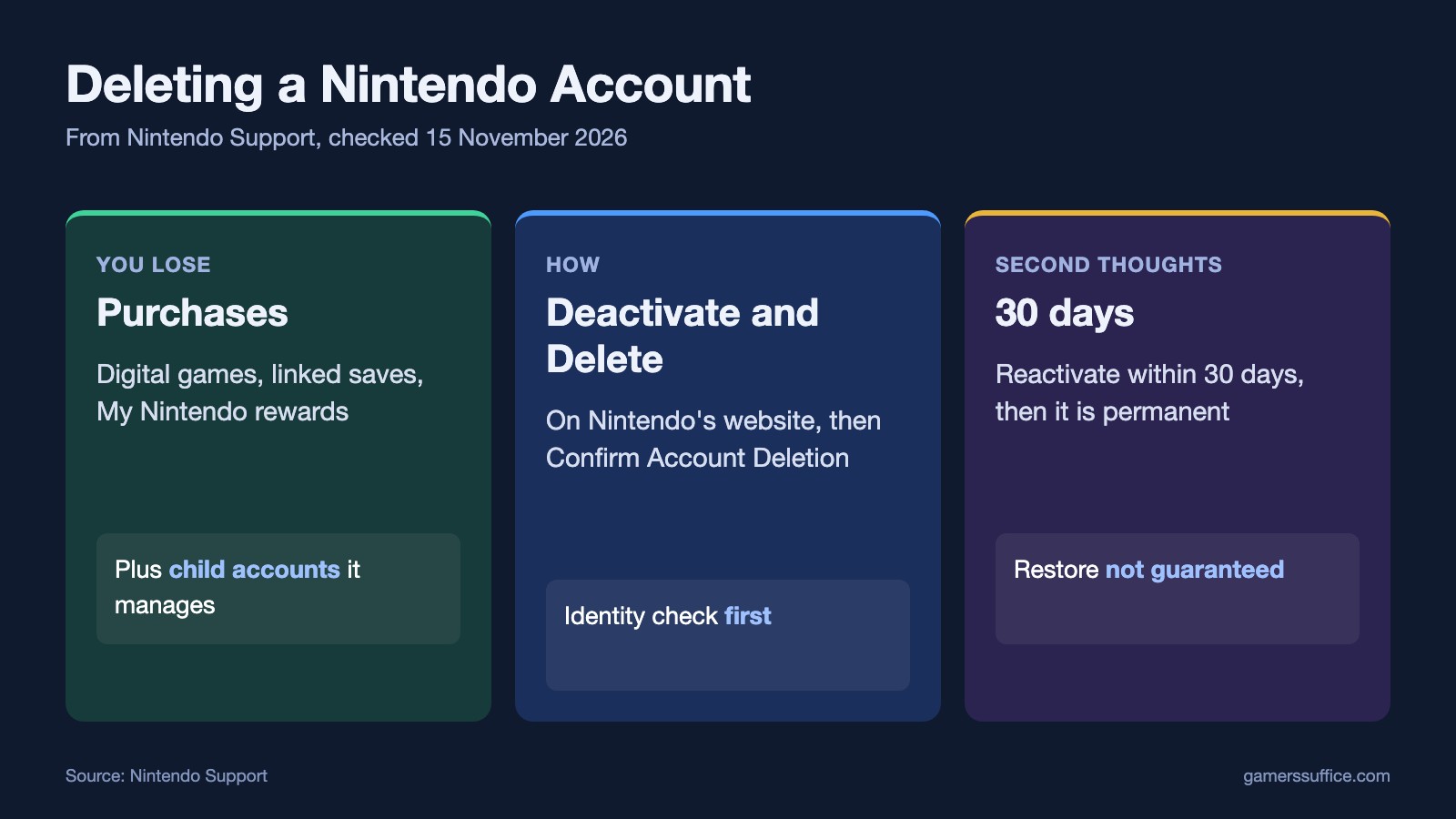
To delete a Nintendo Account, go to Nintendo’s account deactivation and deletion page, sign in, select Deactivate and Delete, confirm your identity, then select Confirm Account Deletion. Nintendo says “The account can be reactivated within the next 30 days , after which the account will be permanently deleted.”
Before you start, know what goes with it. Your digital games go too. Nintendo’s steps, what you lose, and the rules for child accounts are below.
What you lose
Nintendo says “Deleting a Nintendo Account will result in loss of all data associated to it, including:”
- “Digital content that you purchased or redeemed with your Nintendo Account, including in-app content.”
- “Save data of apps linked to your Nintendo Account.”
- “Mission status, points, and rewards in the My Nintendo rewards program.”
Family accounts go too. Nintendo says “Any Nintendo Accounts for children managed by the account you delete will also be deleted as part of this process.”
If you only want to fix your details, you may not need to delete anything. Nintendo says “If your Nintendo Account settings are incorrect, you can change them instead of deleting your Nintendo Account.”
This guide is about the Nintendo Account itself. Removing a user profile from a console is a separate job, and Nintendo’s deletion article doesn’t cover it. Neither does deleting games: for that, see how to delete apps on Nintendo Switch.
How to delete a Nintendo Account
- “Visit the Nintendo Account deactivation and deletion page .”
- Sign in if asked. If you’re already signed in, Nintendo says “make sure your Nintendo Account is the one that appears in the upper-right corner of the page.”
- Read the information on screen. Nintendo’s next step is “Once you have read the information, click Deactivate and Delete .”
- Confirm it’s you. Nintendo says “You may be prompted to confirm your identity by re-entering your password, re-authenticating with your passkey, and/or by verifying your email address.” With 2-step verification on, “you may be prompted to enter an additional code.”
- Nintendo’s final step is “Click Confirm Account Deletion to delete the Nintendo Account.”
The 30-day window
Deletion isn’t immediate. The account can be reactivated for 30 days, and then it’s gone for good. Don’t count on a full restore if you change your mind. Nintendo says “We cannot guarantee that all data will be restored to reactivated accounts.”
Deleting a child’s Nintendo Account
A child can’t do this alone. Nintendo says “Nintendo Accounts for children can only be deleted through the parent/guardian’s Nintendo Account.”
- “Sign in to the parent/guardian’s Nintendo Account and click Family group .”
- Nintendo says “Click the child’s account that you want to delete.”
- “Scroll to the bottom of the page and click Delete child account .”
- Select Deactivate and Delete, and confirm your identity as above.
If the parent deletes their own account instead, Nintendo says “If a family group admin deletes their Nintendo Account, accounts for users aged 13+ in the family group will not be deleted.” “However, they will no longer be connected in a family group.”
What isn’t deleted
Nintendo says “Deleting your Nintendo Account will not delete your Nintendo Network ID or any associated third party accounts (including social media accounts).” Nintendo’s article doesn’t cover closing those.
Thinking of starting fresh on a console? Here’s how linking a Nintendo Account to a Switch works. If a purchase is the reason you’re leaving, read what Nintendo says about refunds first. More guides are in our Console section.
Sources