Corrected 14 October 2026. An earlier version of this guide told readers to freeze the controller in a refrigerator, to open it with a screwdriver and replace the battery (claiming this “will not void your warranty”), and that an overheating sensor could stop it charging. None of that appears in Sony’s documentation, so it has been removed. What follows is Sony’s own sequence for a DUALSHOCK 4 that will not charge.
If your PS4 controller is not charging, Sony’s answer is short. Charge it from the console with the included cable, check the charge status properly, reset the controller, and if it still fails, go to PlayStation Repairs. Each step is below, in the order Sony gives it.
1. Charge it the way Sony documents
Sony says to connect the DUALSHOCK 4 to your PS4 using the included USB cable, and that the battery charges while the console is either on or in rest mode.
To check whether it is actually charging, press and hold the PS button to open the Quick Menu. The battery icon blinks while the controller charges. According to Sony, it takes about 2 hours to charge the controller when the battery has no remaining charge.
2. Check the cable and what it is plugged into
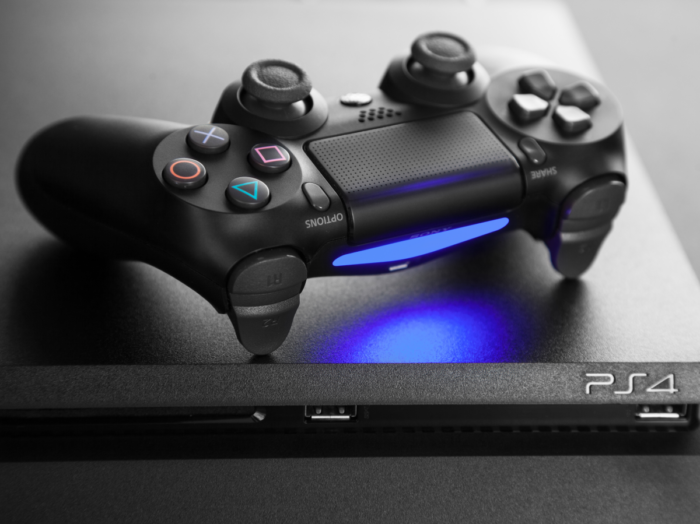
The charging cable that you are using might be the problem. Try using a different charging cable and see if it helps. On a PS5, Sony is specific about the cable type, so see what Sony says about charging a PS5 controller without the console.
Sony also says you can charge the controller from a computer or other USB devices using a USB cable, that the cable should comply with USB standards, and that you may not be able to charge your controller on some devices.
3. If it only fails overnight: check rest-mode charging
A controller left on a PS4 in rest mode only charges if the console is set to supply power to its USB ports. On PS4, go to Settings > Power Save Settings > Set Features Available in Rest Mode, then select Supply Power to USB Ports.
If you choose the 3 hours option, Sony says power will be supplied to the USB ports only for 3 hours after entering rest mode, after which the console lowers its power consumption. While it charges in rest mode, the light bar slowly blinks orange, and it turns off when charging is complete.
4. Reset the controller
Sony’s charging guidance is direct: “If your controller doesn’t charge properly, please try resetting your controller.” Its reset steps are:
- Turn off and unplug your PS4 console.
- Disconnect the controller from the USB cable.
- On the back of the controller, find the tiny hole. The reset button is inside it.
- Use a small, unfolded paper clip (or something similar) to press and hold the reset button for at least five seconds.
- Connect the controller to the PS4 using the official USB cable.
- Press the PS button to pair it with the console.
5. Still not charging: PlayStation Repairs
Sony’s next step after a reset is PlayStation Repairs. Its support page says: “If you still have issues after resetting, please visit PlayStation Repairs.” Its troubleshooting page sends the “Battery issue” option to PlayStation Repairs as well.
Two battery notes from Sony are worth knowing before you get that far. Battery life varies depending on how you use the controller and the environment it is used and stored in. And to keep the controller working properly, Sony says to charge it at least once a year.
For the full walkthrough of charging a DUALSHOCK 4 normally, see how to charge a PS4 controller. More guides are in our Console section.
Sources


