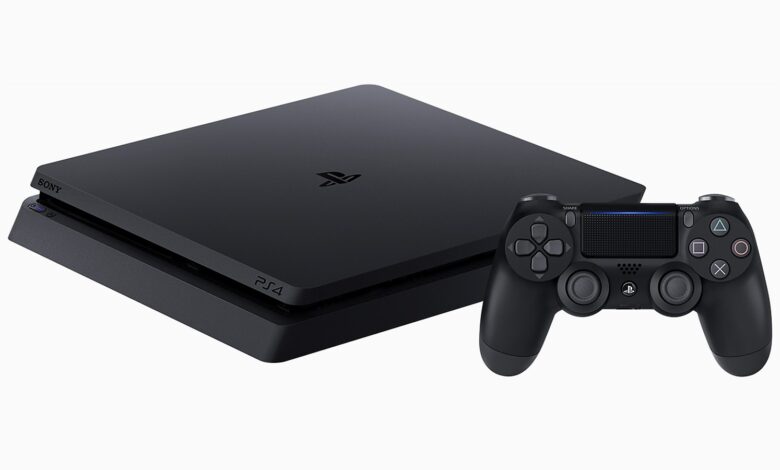
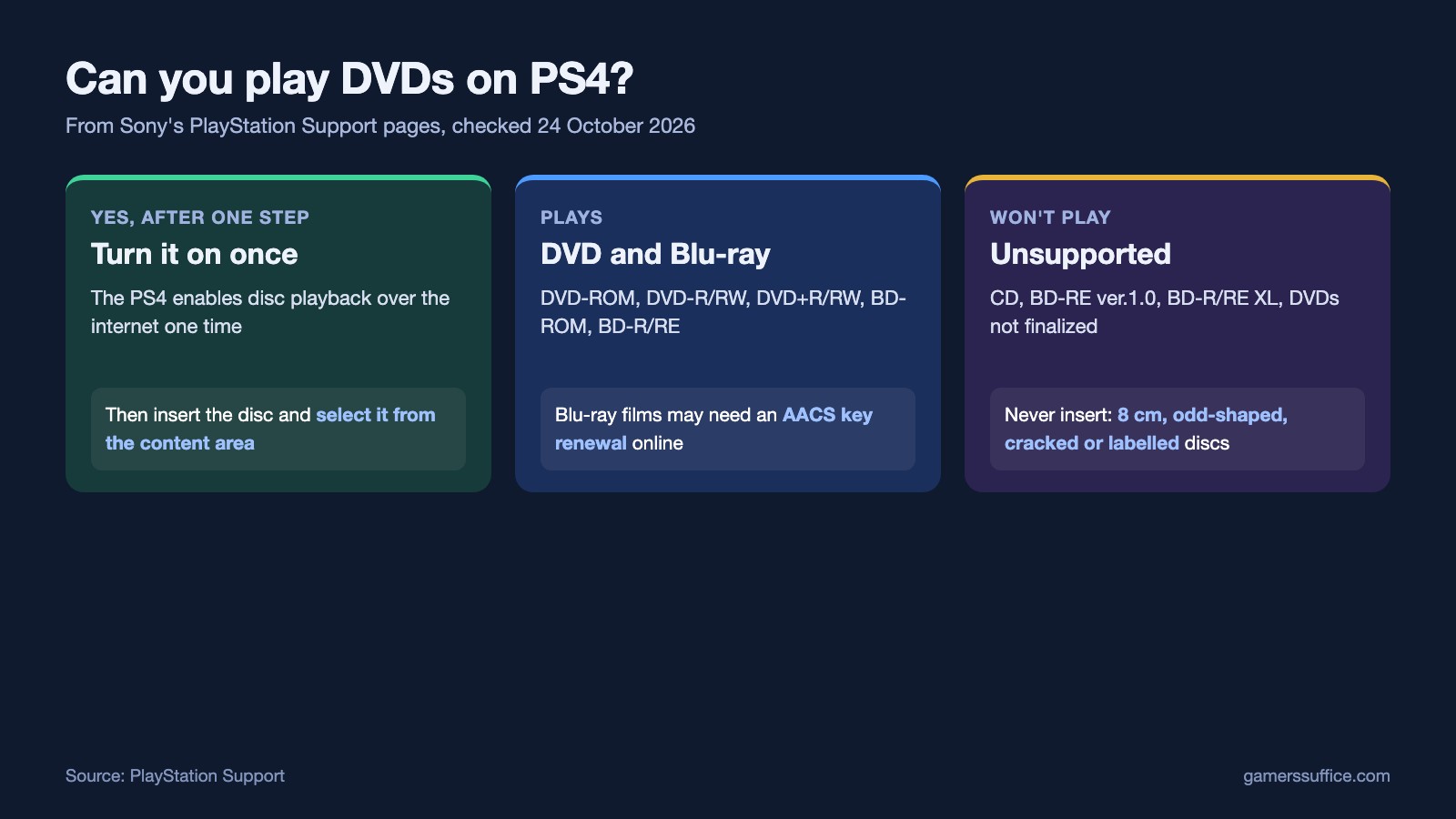
Yes, a PS4 plays DVDs and Blu-ray discs. There’s one catch. Sony says “Your PS4® console must enable the disc playback feature over the Internet (only once) before you can play any BDs or DVDs.”
After that one-time step, Sony says your console doesn’t have to connect to the internet to play BDs or DVDs. Below are Sony’s steps, the formats it supports and the discs it says not to use.
How to play a DVD on PS4
- Connect your PS4 to the internet the first time, so it can enable disc playback.
- Insert the DVD or Blu-ray Disc into the disc slot. If you also own a PS5, here’s how to insert a disc in a PS5.
- Select the content from the content area.
Blu-ray movies have one more online check. Sony says “For continuous playback of copyright-protected BDs, the encryption key for AACS (Advanced Access Content System) might need to be renewed.” That renewal happens automatically when your PS4 is connected to the internet.
Which discs a PS4 plays
Sony’s list of supported PS4 disc formats:
- Blu-ray Disc: BD-ROM, and BD-R/RE (BDAV, BDMV)
- DVD: DVD-ROM, DVD-R/RW (video mode, VR mode) and DVD+R/RW
Sony also notes that hybrid discs are supported, along with AVCHD and CPRM.
Discs a PS4 won’t play
Sony says PS4 and PS5 consoles don’t support playback of these formats:
- CD
- BD-RE ver.1.0
- BD-R/RE XL
- DVDs that have not been finalized
Sony’s disc troubleshooting page adds that “PS4™ consoles can’t play burned discs or audio CDs.” If you burned a DVD yourself and it won’t play, check it against the format list above, and make sure it was finalized.
A DualDisc is a partial case: Sony says the audio-only side can’t be played on your console. Sony’s printed PS4 safety guide also notes that some media have region restrictions, and tells you to check the packaging.
Discs not to put in at all
Sony warns that these discs may damage your console:
- 8 cm discs
- Non-circular discs, such as discs in the shape of a card, star or heart
- Discs that are cracked or deformed, or discs that have been repaired
- Discs that have stickers or paper labels on them
If a DVD won’t play
Sony says some discs may not be playable because of scratches, dust, the quality of recording, or the recording device. Its PS4 disc troubleshooting steps start with the disc itself:
- Clean the disc with a soft, clean cloth to remove any dirt or prints.
- Try inserting another game, Blu-ray disc or DVD.
- Access Safe Mode and select option 5, Rebuild Database.
Reinsert the disc after each step. Sony’s full cleaning method is in our guide to how to clean a PS4 disc.
Playing video from a USB drive instead
If your movie is a file rather than a disc, Sony says to make sure the USB drive is formatted as exFAT or FAT32. Put the videos in a folder on the drive using a computer, then on the PS4 “Select Media Player from the content area. Connect the USB drive to your PS4 console, and then select USB.”
On a PS5?
Disc support depends on the model. Sony says the PS5 Digital Edition (CFI-1000 model group) doesn’t support disc-based games or media. Our comparison of the PS5 Pro and PS5 covers the add-on disc drive. For Xbox, Microsoft’s own steps are in our guide to an Xbox One that isn’t reading discs.
More PlayStation guides are in our Console section.
Sources


