
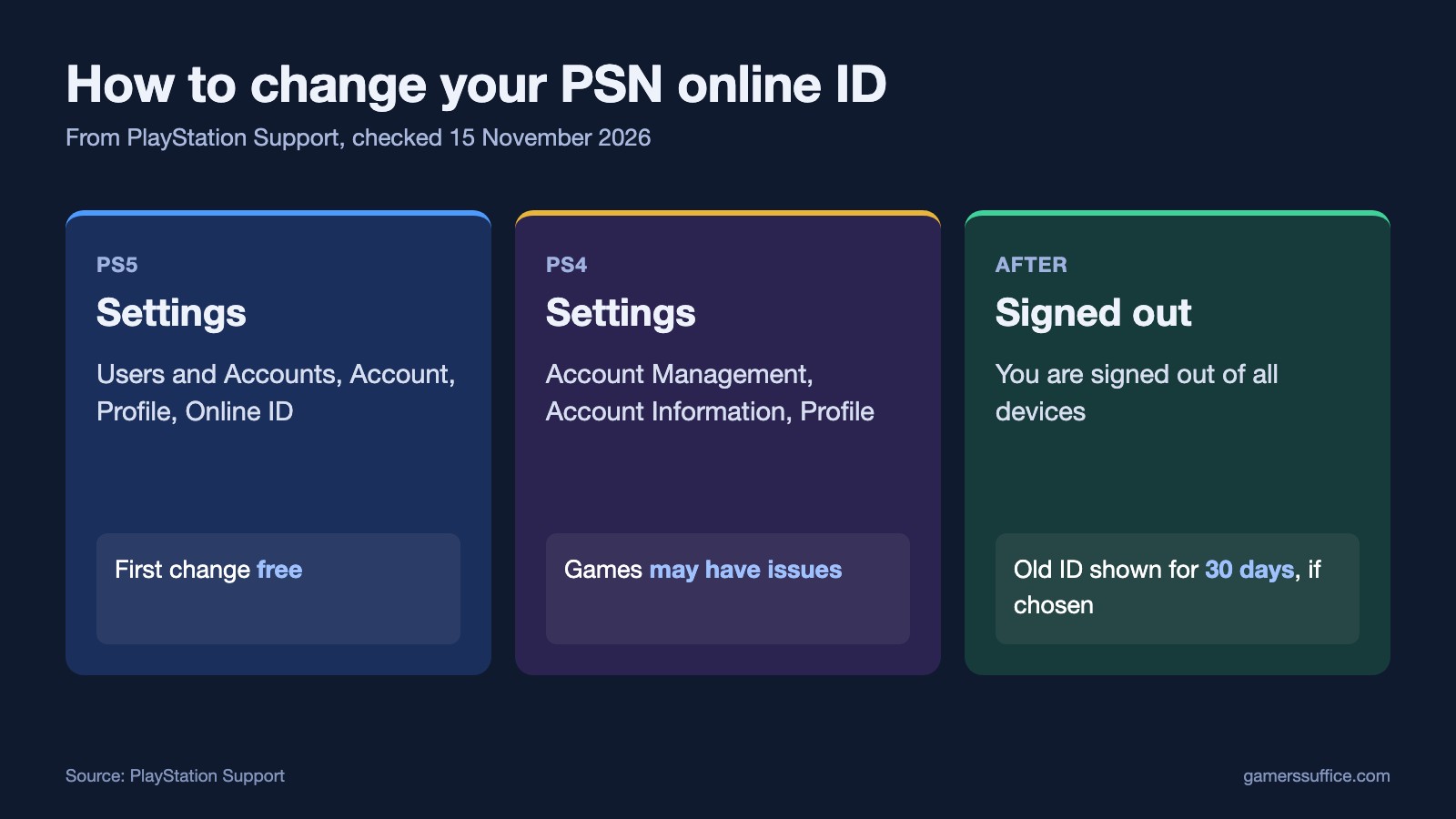
Your PSN name is what Sony calls your online ID, and you can change it on a PS5, a PS4 or the PlayStation App. On PS5, Sony’s path is “Go to Settings > Users and Accounts > Account > Profile > Online ID .” The first change is free. Sony says “The first change is free, but additional changes are applied with a charge.” Its page doesn’t give the price.
Here are Sony’s steps for each device, the option that helps friends find you, and the reasons to think twice on PS4.
On a PS5
- “Go to Settings > Users and Accounts > Account > Profile > Online ID .”
- Enter a new online ID. Sony says “If your new online ID is available, select Confirm .”
- Choose whether to show your old ID for 30 days (see below).
- Sony’s last step is “Select Order & Pay to confirm your purchase.” The first change is free.
On a PS4
- “Go to Settings > Account Management > Account Information > Profile > Online ID .”
- Enter a new online ID. Sony says “If your online ID is available, select Continue .”
- Choose whether to show your old ID for 30 days, then confirm.
In the PlayStation App
- “Go to the Play menu by pressing the controller icon.”
- “Go to your profile by selecting your profile picture.”
- “Select Edit Profile and enter your password.”
- “Select Edit next to your online ID.”
- “Enter a new online ID and select Check availability .” If it’s available, continue and finish the purchase.
The 30-day option, and what happens next
Sony gives you one way to help friends keep track of you: “Choose whether you would like to display your old online ID next to your new online ID for 30 days.” It’s offered only during the change. Sony says “You must select this option during the change process.”
Expect to sign in again everywhere. Sony says “After you complete the change process, you’re signed out of all devices.” Your online ID isn’t what you sign in with, though. Sony says “Your sign-in ID is the email address you use to sign-in to PlayStation.”
Before you change it on PS4
This is the part to read first. Sony says “PlayStation®4 games may experience issues after an online ID change.” Its troubleshooting page goes further: “Changing your online ID can sometimes cause issues, such as losing game progress, functionality and content.”
Sony’s advice is to “Check whether your game has been tested on the list of games tested with the online ID change feature.” And there’s a way back: “If you experience technical issues, you can revert back to your original online ID for free.”
A few other limits from Sony:
- “PlayStation®3 consoles and PlayStation®Vita systems do not support the online ID change feature.”
- “No, online IDs can’t be changed for child accounts.”
- “You can change your online ID as many times as you want.” Only the first change is free.
If your new ID shows as temp-xxxxxx
Sony says “If your new online ID violates our Terms of Service, it will be changed to temp-xxxxxx.” You can pick a new one. There’s one case you can’t undo: Sony says “Your original online ID has been reported as inappropriate. This type of online ID change can’t be reversed.”
Sony also wants to hear from you if “It’s been longer than one week since I changed my online ID, and my new online ID isn’t showing”.
Sony describes an online ID as “a unique display name used to identify you on PlayStation.” Playing online? Here’s whether you need PlayStation Plus to play online. Still setting up an account? See our guide to creating a PSN account on PS5. Sony adds that “Your online ID can be displayed on Discord.” More guides are in our Console section.
Sources


